Monitor Won’t Wake Up From Sleep? 12 Fixes That Actually Work
You wiggle the mouse. You tap a key. Nothing. Your PC is clearly awake; the fans are spinning, the tower LED is lit, maybe you can even hear Windows chime. But the screen stays black or just sits there flashing “No Signal.” It’s one of the most frustrating PC problems because it looks like a hardware failure, but nine times out of ten, it isn’t.
I’ve chased this exact issue across a handful of different machines, a desktop with an Nvidia card, a laptop docked over USB-C, and an old office PC that only ever misbehaved on Mondays. The cause is rarely a dead monitor.
It’s usually a lost “handshake” between your graphics card and the display, a driver that didn’t wake up properly, or a power setting that’s quietly working against you.
This guide walks through what’s actually happening when this occurs, then gives you every fix worth trying, roughly in order of how likely they are to solve it fastest.
Quick Answer: In most cases, your monitor isn’t broken. It’s stuck waiting on a video signal that never arrives. Try this first: press Windows key + Ctrl + Shift + B to force Windows to reset the display driver (your screen will flash black for a second). If that doesn’t fix it, work through updating your graphics driver, checking your cable/port, disabling Fast Startup, and turning off PCI Express Link State Power Management, covered in detail below.
Is It the Monitor or the PC? How to Tell in 10 Seconds
Before trying anything else, figure out which side of the problem you’re actually dealing with. It changes everything about where you should look next.
- Screen is completely black, no LED activity, nothing at all → This usually points to the monitor itself: a power issue, a dead panel, or a cable that’s come loose.
- Screen shows “No Signal,” “No Input,” or similar, and the monitor’s power LED is on → The monitor is fine and waiting. The problem is that your PC isn’t sending it a video signal. This is the far more common scenario, and it’s almost always fixable in software.
- Monitor’s LED briefly flickers or changes color, then goes black again → This is a classic sign of a failed signal handshake right after wake-up. Skip straight to the driver reset and cable-check sections below.
Related: PC Turns On But No Display? Here’s How to Fix It
Why This Actually Happens (And Why There’s No Single Fix)
Every time your monitor goes to sleep, the physical cable stays connected, but the active video connection between your graphics card and the display shuts down.
When you wake the PC, your GPU and monitor have to quickly renegotiate that connection, technically called an EDID handshake, where the monitor essentially tells the graphics card, “here’s what resolution and refresh rate I support,” and the GPU responds by sending a matching signal.
Most of the time this happens in under a second and you never notice it. But if that handshake gets interrupted by a flaky cable, an outdated driver, an aggressive power-saving setting, or a monitor’s own “deep sleep” mode, the two devices never re-sync, and you’re left staring at a black screen or a stuck “No Signal” message.
That’s also why there’s no single universal fix. The renegotiation can fail at several different points, so the fastest way to solve it is to work through the causes from most common to least common, which is exactly how this guide is ordered.
1. Try the Normal Wake-Up Methods First
Start with the obvious stuff. It’s easy to skip these when you’re frustrated, but they rule out the simplest causes.
- Move your mouse in a wide, deliberate motion (small nudges sometimes aren’t registered).
- Press a key on your keyboard. Not a modifier key like Shift alone, but something like the Spacebar.
- Check your monitor’s status LED. Sleep mode is usually indicated by an amber, orange, or blinking light; a solid green or blue/white light means it’s receiving power and active.
- Press the monitor’s physical Input or Source button a few times. If it’s set to the wrong input, it won’t detect the signal even if your PC is sending one.
If none of that works, the problem is deeper than a simple sleep-wake glitch, and it’s time for the next fix.
2. Reset the Display Driver Without Restarting
This is the fastest real fix, and it’s missing from most guides on this topic. Windows has a built-in shortcut that restarts the graphics driver on the spot, without rebooting your PC:
Press Windows key + Ctrl + Shift + B.
Your screen will flash black for a second, and you may hear a beep. This forces Windows to reinitialize the display driver and re-attempt the handshake with your monitor.
It solves the problem in a surprising number of cases, especially when the driver, not the hardware, is the one that got stuck.
If that doesn’t work, try cycling the display mode instead:
Press Windows key + P, then press P again, then Enter. This forces Windows to re-detect and re-output to your display.
Related: How to Fix CPU Fan Error on Boot Time?
3. Check the Cable and the Port You’re Using
A marginal or damaged cable often works fine on a fresh boot but fails specifically after sleep, because the renegotiation needs a cleaner signal than a continuous, already-established connection does.
This is especially common on 4K or high-refresh-rate monitors, where the cable has far less margin for error.
- Reseat the cable at both ends; unplug it, check for bent pins or debris, and plug it back in firmly.
- If you have a second cable (even a cheap spare), swap it in and test.
- Try a different port on your graphics card. If you’re using an onboard motherboard port and a dedicated GPU is installed, make sure you’re actually plugged into the GPU, not the motherboard.
- DisplayPort vs. HDMI: Sometimes, we have noticed that DisplayPort can be a little less reliable than HDMI when a computer wakes from sleep. This doesn’t happen on every system. However, certain graphics cards and driver combinations may take longer to reconnect the display or occasionally fail to wake the monitor properly. If you’re on DisplayPort and this happens often, it’s worth testing an HDMI connection instead, if your setup allows it.
If your current cable is more than a couple of years old or came bundled with a budget monitor, a certified high-speed HDMI 2.1 or DisplayPort 1.4 cable is inexpensive insurance against exactly this kind of signal flakiness, which is easily available on Amazon.
4. Update (or Reinstall) Your Graphics Driver
An outdated or corrupted GPU driver is one of the single most common causes of wake-from-sleep display failures, particularly after a Windows update. Fixing it is usually straightforward:
- Right-click the Start button and open Device Manager.
- Expand Display adapters.
- Right-click your graphics card (Nvidia, AMD, or Intel) and choose Update driver → Search automatically for drivers.
- If that doesn’t find a newer version, go directly to the manufacturer’s site (Nvidia, AMD, or Intel) and download the latest driver for your exact GPU model.
If updating doesn’t help, a clean reinstall often does. Uninstall the driver from Device Manager (check the box for “Delete the driver software” if offered), then restart your PC; Windows will fall back to a generic display driver. Then install the latest driver fresh from the manufacturer.
5. Disable Windows Fast Startup
Fast Startup is meant to speed up boot times, but it can interfere with how your system fully resets its power state, which sometimes carries over into sleep/wake behavior.
- Open Control Panel → Power Options.
- Click Choose what the power buttons do.
- Click Change settings that are currently unavailable.
- Uncheck Turn on fast startup.
- Save changes and restart.
Related: How to Fix a Laptop That Won’t Turn On?
6. Change Your Monitor’s Own Settings
Two settings buried in your monitor’s on-screen menu are common culprits, and they’re both worth checking even if the fixes above didn’t work.
a) Turn Off Auto-Detect / Auto Input Switching
When your monitor sleeps, its active connection to the PC is dropped even though the cable stays physically attached.
On wake, the monitor is supposed to automatically re-detect that connection. But on some models, it doesn’t, and it stays parked on “no signal” instead of trying again.
Go into your monitor’s on-screen menu (usually accessed via a physical button) and disable “Auto Detect” or “Auto Input,” forcing it to stay locked to the input you’re actually using.
b) Turn Off Deep Sleep / Eco Mode
Many monitors have a low-power mode ( sometimes called Deep Sleep, Eco Mode, or Power Saver) that goes a step further than standard standby.
It saves a small amount of power, but it’s notorious for not waking back up properly when your PC comes out of sleep, leaving you to manually power-cycle the monitor. Find this setting in your monitor’s menu and switch it off.
7. Check Which Devices Are Allowed to Wake Your PC
If your PC itself isn’t fully waking (not just the monitor), a misconfigured wake device is often to blame.
- Open Device Manager → expand Mice and other pointing devices (and separately, Keyboards).
- Right-click your mouse (and keyboard) → Properties → Power Management tab.
- Make sure Allow this device to wake the computer is checked.
If your monitor stays black even though the PC clearly wakes (fans, lights, drive activity), this step won’t be the fix. Skip to the driver and cable sections instead.
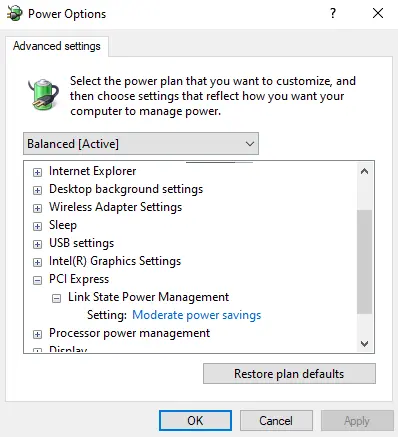
8. Adjust PCI Express Link State Power Management
This Windows setting is designed to save power by scaling back your PCIe bus, but it has a long history of interfering with GPU wake behavior.
- Go to Control Panel → System and Security → Power Options.
- Click Change plan settings next to your active power plan.
- Click Change advanced power settings.
- Scroll to PCI Express, expand it, and expand Link State Power Management.
- Set both On battery and Plugged in to Off.
- Click Apply, then OK.
9. For Laptops With Two Graphics Chips (Dual-GPU)
If you’re on a laptop with both integrated graphics (Intel or AMD) and a discrete GPU (Nvidia or AMD), the handoff between the two chips after sleep can occasionally fail, leaving the display stuck.
- Open Device Manager → Display adapters.
- Right-click the integrated (onboard) GPU. Typically labeled Intel HD/UHD/Iris or AMD Radeon Graphics.
- Select Disable device.
- Restart and test whether sleep/wake now behaves correctly.
If it does, the issue is switchable-graphics related, and updating your laptop manufacturer’s GPU switching software (not just the raw driver) is usually the longer-term fix.
Related: What to Look for When Buying a Laptop? Tips from the Experts
10. Troubleshooting a Second (or Third) Monitor
If it’s specifically your secondary display that won’t come back, while your main monitor wakes just fine. Here, the cause is usually slightly different: a refresh-rate mismatch, a USB-C dock renegotiating slowly, or a signal chain that has one too many adapters in it.
- Test with the extra monitor as your only connected display. If it wakes fine alone, the issue is how Windows manages multiple displays coming back at once, not the monitor itself.
- If you’re going through a USB-C hub or docking station, connect the monitor directly to your GPU instead, if possible, to rule the dock out.
- Avoid unnecessary adapters (like DisplayPort-to-HDMI adapters) in the chain where you can. Each conversion point is another place the handshake can fail.
- Try matching refresh rates across both monitors if they differ significantly (for example, a 144Hz primary paired with a 60Hz secondary).
11. Disable PLL Overvoltage (Asus Motherboards Only)
This is a narrow fix, but if you’re on an Asus motherboard, it’s a well-documented cause. “Internal PLL Overvoltage” is enabled by default on many Asus boards to help with mild overclocking headroom, and it’s known to interfere with clean wake-from-sleep behavior on some builds.
- Restart your PC and press Delete repeatedly to enter BIOS.
- Switch to Advanced Mode.
- Go to the AI Tweaker tab.
- Find Internal PLL Overvoltage and set it to OFF.
- Save changes and exit (usually F10).
12. Full Power Drain (Last Resort Before Assuming Hardware Failure)
If nothing above has worked, residual charge sitting in your monitor or PC’s capacitors can occasionally keep a “stuck” state alive even through a normal reboot. A full power drain clears that out:
- Fully shut down Windows (not sleep, not hibernate; a complete shutdown).
- Unplug the monitor’s power cable from the wall and its video cable from the PC.
- Hold the monitor’s physical power button for about 15 seconds.
- Unplug your PC’s power cord as well, and hold its power button for a few seconds too.
- Reconnect everything, power on the PC first, then the monitor, and test sleep/wake again.
If the problem returns immediately after this, you can be fairly confident you’re dealing with a driver, cable, or settings issue rather than a genuinely failing capacitor or power circuit, which points you back to fixes #2 through #9 above.
When It’s Actually a Hardware Fault
If you’ve worked through the list above and the monitor still won’t wake, especially if it also fails to display anything on a completely different PC, or the issue has gotten progressively worse over weeks, it’s reasonable to suspect an internal fault in the monitor itself.
At that point, contacting the manufacturer’s support or a local repair service is the next step, particularly if the monitor is still under warranty.
If you do end up needing a replacement, it’s worth going with an established brand that has a documented track record on sleep/wake reliability rather than the cheapest panel available. A well-reviewed monitor from a major manufacturer [view on Amazon] will save you from running into this exact issue again in a year.
Related: How Long Do PC Power Supplies Last, and How Can We Increase PSU Lifespan?
Common Mistakes That Make This Worse
- Assuming it’s the monitor and replacing it first. In the vast majority of cases documented across support forums, the fix was a driver, cable, or power setting, not a dead display.
- Only testing with the mouse. Some wake settings only respond to keyboard input, or vice versa. Always test both before concluding the PC itself isn’t waking.
- Skipping the driver reinstall and only “updating.” A corrupted driver sometimes needs a full uninstall and clean reinstall; an update over a broken install can leave the same bug in place.
- Ignoring Event Viewer. If this keeps happening, Windows’ Event Viewer (search for it in the Start menu) logs the exact time your PC went to sleep and woke up, along with any driver crash or timeout errors around that moment. This is genuinely useful if you want to pin down the cause instead of guessing.
Quick Decision Guide
| What you’re seeing | Most likely cause | Try this first |
|---|---|---|
| Monitor LED stays amber/off entirely | Monitor not receiving power or waking | Check monitor power cable and outlet |
| “No Signal” message, LED is on | Failed signal handshake | Win + Ctrl + Shift + B, then check cable |
| PC clearly awake, one of two monitors black | Multi-monitor/dock issue | Test the monitor alone, direct to GPU |
| Works fine after a reboot, fails again after sleep | Driver or Link State Power Management | Update driver, disable PCIe Link State PM |
| Only happens on Asus boards | PLL Overvoltage | Disable in BIOS |
| Laptop only, docked or undocked | Dual-GPU handoff | Disable integrated GPU, test |
Final Thoughts
A monitor that won’t wake up from sleep can be frustrating. The good news is that it’s usually not a hardware failure. In many cases, the problem comes down to a graphics driver, a display cable, a power setting, or a failed connection between your PC and monitor after waking from sleep.
Start with the quick fixes first. The Windows + Ctrl + Shift + B shortcut, updating your graphics driver, checking your cable, and adjusting your power settings solve the problem for many users.
If the issue continues after trying every fix, it’s time to test the monitor on another PC. If none of the fixes above solve it, or your monitor also fails to display anything at all on a different computer, it’s reasonable to treat this as a hardware issue and contact the manufacturer’s support or a local repair service.
Frequently Asked Questions
Why does my monitor say “No Signal” after sleep instead of just turning on?
“No Signal” means the monitor itself is awake and working. It’s simply not receiving a video signal from your PC. This points to a failed handshake, driver issue, or cable problem rather than a broken display.
How do I fix a monitor stuck in sleep mode?
Start by moving the mouse in a wide motion and pressing a key on the keyboard. If that doesn’t work, press Windows key + Ctrl + Shift + B to force a driver reset, which resolves this in many cases within seconds.
Why does my monitor wake up sometimes but not others?
Intermittent wake failures usually point to a marginal cable, an outdated graphics driver, or a power-saving setting like PCI Express Link State Power Management that’s inconsistently affecting the signal handshake.
Is it safe to keep using Windows + Ctrl + Shift + B as a workaround?
Yes, it’s a built-in Windows shortcut designed specifically to reset the display driver without a full reboot, and it causes no harm to your system. That said, if you need it regularly, it’s worth fixing the underlying driver or power setting instead of relying on it long-term.
Does this happen more with DisplayPort or HDMI?
Practically, DisplayPort tends to run into more wake-from-sleep handshake issues than HDMI with certain GPU and driver combinations, though this varies by hardware. If you’re having persistent trouble on DisplayPort, testing an HDMI connection is a reasonable troubleshooting step.
My PC wakes up (fans spin, lights on) but the screen stays black. Is that the monitor or the PC?
This is almost always a signal or driver issue, not a dead monitor. The PC is awake and running; it’s failing to re-establish the video handshake with the display. Start with the driver reset shortcut and a graphics driver update.
Why does only my second monitor fail to wake up?
Secondary displays often go through a docking station, hub, or adapter chain that adds extra points where the signal handshake can fail. Test the monitor alone, connected directly to your graphics card, to isolate the cause.
Can a bad cable really cause this even if the monitor works fine otherwise?
Yes. A cable that’s fine for maintaining an already-established signal can still fail during the renegotiation that happens on wake, especially at 4K resolutions or high refresh rates where there’s less margin for signal error.
Should I update my graphics driver even if Windows says it’s up to date?
Yes. Windows Update sometimes lags behind the manufacturer’s own releases. Checking directly on Nvidia’s, AMD’s, or Intel’s website for the latest driver is worth doing even if Device Manager reports no updates available.
What is Deep Sleep mode on a monitor, and should I turn it off?
Deep Sleep (sometimes called Eco Mode) is a lower-power standby state that saves a small amount of energy but frequently fails to wake correctly alongside your PC. If you’re experiencing wake failures, turning it off in your monitor’s on-screen menu is one of the more reliable fixes.
Does disabling Fast Startup affect my normal boot time?
It can add a few seconds to a cold boot, since Windows will do a full shutdown and startup instead of a hybrid one. For most people, that small trade-off is worth it if it resolves recurring wake-from-sleep problems.
Is PLL Overvoltage relevant if I don’t have an Asus motherboard?
No. This is an Asus-specific BIOS feature. If you’re on a different motherboard brand, you can skip this step entirely and focus on the driver, cable, and Windows power settings instead.
My monitor’s power LED changes color when I try to wake it, but the screen stays black. What does that mean?
This is a strong sign the monitor itself received the wake signal and is functioning correctly. The failure is happening in the video handshake, not the monitor’s power state. Focus on the driver reset and cable checks.
Can outdated BIOS or motherboard firmware cause this?
It can, though it’s less common than a driver or cable issue. If you’ve ruled out the graphics driver, cable, and power settings, checking your motherboard manufacturer’s site for a BIOS update is a reasonable next step, especially if the problem started right after a previous BIOS update.
How do I know if the problem is my PC’s sleep settings rather than the monitor?
If the PC itself also seems unresponsive when you try to wake it ( no fan noise, no lights, no drive activity), the issue is more likely in Windows’ sleep configuration or a wake-device setting, rather than the monitor or video signal.
Will resetting my PC to factory settings fix this?
It’s rarely necessary. Almost every case of this issue traces back to a driver, cable, power setting, or monitor-side option covered above, all of which are far less drastic than a full reset and just as effective.
What should I check first if this just started happening recently?
Think about what changed right before it started. A Windows update, a new graphics driver, a new cable, or a BIOS update are the most common triggers. Rolling back or updating whichever of those changed most recently often resolves it fastest.
We hope this guide helped you get your monitor working again. If you found it useful, please share it with your friends and family.
Also, follow The Infobits on Facebook and X (formerly Twitter) for more Windows troubleshooting guides, PC repair tips, hardware comparisons, and practical tech advice.
Also consider signing up for our free newsletter to receive fresh information right in your inbox and stay technically informed.
Disclosure: If you follow our links to a retailer’s website and make a purchase, we will get an affiliate commission on some, but not all, of the items or services we promote. This will cause no price change for you.