
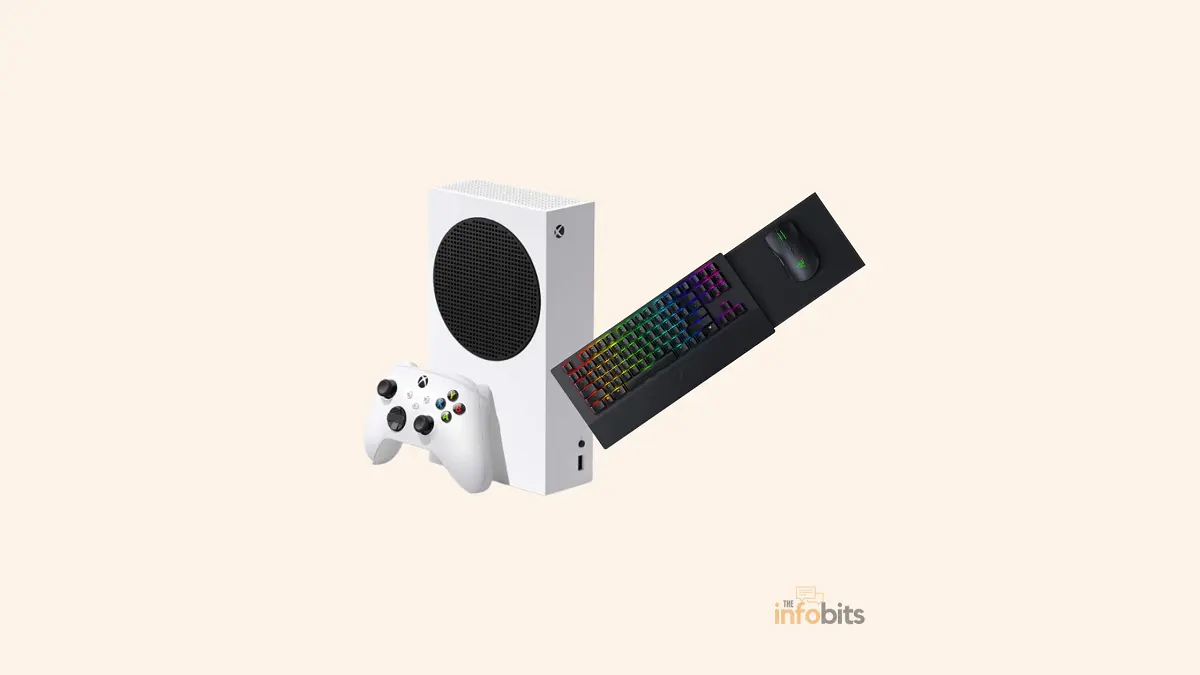
How to Connect a Keyboard and Mouse to Xbox (2026 Guide)
Quick answer: Plug a wired keyboard and mouse (or a wireless set’s USB dongle) into any open USB port on your Xbox One, Xbox Series X, or Xbox Series S; the console detects them automatically, no setup required. This has been officially supported by Microsoft since keyboard and mouse input rolled out in late 2020, so you’re not working around a limitation; it’s a built-in feature.
The one catch: individual games have to add support themselves, so not every title will recognize your mouse and keyboard even though the console does.
Wired Is Still the Most Reliable Method
Plug a wired keyboard or mouse into any USB port on the front or back of your console. The Xbox recognizes it instantly. There’s no pairing process, no settings to dig through first. This is true across Xbox One, Xbox One S, Xbox One X, Xbox Series X, and Xbox Series S.
If you’re using a wireless keyboard/mouse set that comes with its own USB receiver (like most Logitech Unifying-style setups), plug that receiver into a USB port the same way. It works essentially like a wired connection from the console’s perspective.
What About Bluetooth?
This is where a lot of guides (including older versions of this one) get muddled, so it’s worth being precise. Xbox’s Bluetooth support for keyboards and mice is limited and inconsistent, and it’s evolved.
Recent system updates have added a Bluetooth pairing option for some accessories under Settings > Devices & connections > Remote features & accessories, but real-world reports on how reliably this works with third-party keyboards and mice are mixed, and it’s not treated as fully supported the way headsets and controllers are.
The practical takeaway: if you have the choice, use a wired connection or a USB dongle. It’s the most reliable option across every Xbox model, avoids the sync/dropout issues some users report with Bluetooth, and doesn’t depend on your specific keyboard or mouse being on a compatibility list that varies by firmware version.
Step-by-Step Setup
- Get a keyboard and mouse. On Xbox Series X/S, your controller can already fill in for basic mouse-style navigation in many menus, so you technically don’t need both if you’re just after text entry.
- Plug the devices (or their USB receiver) into an open USB port on your console.
- The Xbox will detect them automatically; no additional drivers or setup needed for basic navigation.
- Adjust mouse settings if you want to: press the Xbox button to open the guide, then go to Profile & system > Settings > Devices & connections > Mouse to set pointer speed and swap the primary/secondary buttons.
- If the settings menu doesn’t appear, restart your console. This forces it to re-detect and properly register the mouse.
- If a game seems to only partly respond to your mouse, check Accessibility settings for a “Lock input method as mouse” option, which can resolve cases where a game technically supports keyboard/mouse but isn’t picking up input consistently.
One setup tip worth following: if your wireless keyboard and mouse share a single combo dongle, some users report inconsistent recognition on Xbox. A separate dongle for each device (or a fully wired setup) tends to be more reliable.
Keyboard Shortcuts on Xbox
Once connected, a keyboard can navigate the dashboard and menus, not just type. These shortcuts closely mirror Windows conventions, which makes them easy to pick up if you’re already familiar with a Windows PC.
| Function | Shortcut |
|---|---|
| Navigate (left/right/up/down) | Arrow keys |
| Search | Y |
| Open the menu | Windows + M |
| Change view | Windows + V |
| Power menu / expand notification | Windows + X |
| Open Xbox settings | Windows + I |
| Select | Spacebar / Enter |
| Open the Xbox Guide | Windows key |
| Go back | Esc / Windows + Backspace |
| Move to next/previous element | Tab / Shift + Tab |
Which Games Actually Support Keyboard and Mouse?
Microsoft doesn’t maintain an official, searchable list of every keyboard-and-mouse-compatible title, and there’s no indicator on a game’s store page. Support is decided individually by each developer, not standardized platform-wide.
As of 2026, community-maintained tracking lists (like the regularly updated one at Pure Xbox) count over 100 games with some form of keyboard and mouse support, which is up substantially from the roughly 56 tracked just a few years ago.
Well-known examples include Halo: The Master Chief Collection, Minecraft, Fortnite, Sea of Thieves, Call of Duty: Warzone, Final Fantasy XIV Online, and Microsoft Flight Simulator, alongside a steadily growing list of newer releases.
A few things worth knowing:
- Support level varies by game. Some titles support both keyboard and mouse fully; others support only one, or require a controller for menu navigation even if gameplay accepts mouse input.
- The list keeps growing. Community trackers add new titles regularly as developers roll out support, so it’s worth checking a current list rather than relying on a static one.
- When in doubt, just try it. Since there’s no official compatibility badge, plugging in and testing is often the fastest way to find out.
Benefits of Using a Keyboard and Mouse on Xbox
- Faster, easier text entry; typing messages, search queries, or Xbox Live chat is dramatically quicker than the on-screen keyboard.
- Quicker dashboard navigation using the shortcuts above.
- Better precision in supported games, particularly shooters and strategy titles, where mouse aiming and quick keyboard commands mirror the PC experience.
Limitations to Know Before You Set Up
- Not every game supports it, and there’s no reliable way to check in advance beyond testing or checking a community list.
- Online matchmaking can change. In many competitive online games, using keyboard and mouse causes the system to match you against PC players rather than other console/controller players. This affects specific input-based matchmaking pools and is worth checking for the specific game you’re playing, since exact behavior varies by title.
- USB port availability is limited, especially on Xbox Series S, which has fewer ports than older consoles. A USB hub, such as an Anker USB Hub [get on Amazon], solves this but adds cost and another cable to manage.
- If keyboard-and-mouse control is your primary interest, it’s worth being honest that a gaming PC will simply offer broader, more consistent support than any console. Xbox’s implementation is genuinely useful but still secondary to controller input as the platform’s default.
Related: How to Fix Mouse Stuttering in Games: 15 Proven Fixes for Windows
Recommended Keyboard and Mouse Options
Purpose-built option: The Razer Turret ( developed in partnership with Microsoft specifically for Xbox) remains a genuinely distinctive product [available on Amazon]. It is a wireless mechanical keyboard and mouse combo with a pull-out mousepad and a dedicated Xbox button.
It’s priced at a premium, and worth noting if you go this route. It uses a single paired wireless dongle, so losing it effectively disables the whole set. Treat that dongle carefully.
General options: Beyond the Turret, most wired gaming keyboards and mice like Redragon S101-3 PRO [available on Amazon] work well since Xbox’s underlying architecture shares enough with Windows that broad compatibility is the norm rather than the exception.
If you’re buying new, a simple wired combo is the safest, cheapest way to guarantee compatibility without troubleshooting.
Third-Party Adapters for Unsupported Games
Some Xbox games do not officially support a keyboard and mouse. In those cases, third-party adapters can help. These devices convert your keyboard and mouse inputs into standard Xbox controller signals. As a result, the game treats them as controller input, allowing you to play with a keyboard and mouse even when native support isn’t available.
XIM Matrix is the current flagship product in this space (the older XIM Apex has been succeeded by this newer model), supporting Xbox Series X/S, Xbox One, PlayStation 5/4, and PC, with mouse, keyboard, and even gyro-controller input translation.
One important piece of information these adapters carry that older guides don’t mention: Microsoft has taken enforcement action against some unauthorized third-party controllers and peripherals on Xbox in recent years, aimed primarily at cheating tools and unauthorized accessories.
XIM-style adapters have continued to function through these changes, but the peripheral policy landscape has shifted before and could again. If you’re relying on one of these adapters for competitive online play, it’s worth checking the adapter manufacturer’s current compatibility statement rather than assuming indefinite support.
Even with an adapter, there’s no guarantee every game will behave perfectly. You may still encounter bugs or inconsistent recognition, and it’s worth confirming your specific keyboard and mouse are supported by the adapter’s own compatibility list before buying.
Related: Xbox Controller Won’t Connect: Simple Fixes
Final Thoughts
Connecting a keyboard and mouse to an Xbox is easier than many people think. In most cases, you just plug them in, and the console recognizes them automatically. The biggest thing to remember is that game support varies. Even if your Xbox detects your keyboard and mouse, not every game is designed to use them.
If you want the most reliable experience, use a wired keyboard and mouse or a wireless set with a USB receiver. Before buying new accessories, check whether your favorite Xbox games support keyboard and mouse input. That can save you time, money, and frustration.
Frequently Asked Questions
Can I use Bluetooth on Xbox One?
No. Bluetooth functionality is not available on the Xbox One. Even the Xbox 360 only supports Bluetooth for controllers.
Does Xbox officially support keyboard and mouse?
Yes. Microsoft officially rolled out keyboard and mouse support starting in late 2020, and it’s a built-in platform feature today, not a workaround. Individual game support still depends on each developer choosing to enable it.
Does Xbox support Bluetooth keyboards and mice?
Support is limited and inconsistent. Some recent system updates added a Bluetooth pairing option under Settings, but a wired connection or USB dongle remains the more reliable method across all Xbox models.
Will my keyboard and mouse work with every Xbox game?
No. Support is decided individually by each game’s developer. As of 2026, over 100 games have some form of keyboard and mouse support, but plenty of titles, including many that would seem well-suited to it, don’t.
Does this work the same way on Xbox One and Xbox Series X/S?
Yes, the basic connection process is identical across Xbox One, Xbox One S, Xbox One X, Xbox Series X, and Xbox Series S . Plug in a wired device or wireless dongle and the console detects it automatically.
Will using a keyboard and mouse get me matched against PC players online?
In many competitive online games, yes. Input-based matchmaking often groups keyboard/mouse users with PC players rather than controller users. This varies by title, so check the specific game if this matters to your decision.
What should I do if my mouse isn’t working properly in a game that’s supposed to support it?
Check Accessibility settings for a “Lock input method as mouse” option, and restart your console if the mouse settings menu doesn’t initially appear. This often resolves detection issues.
Can I use a third-party adapter to get keyboard and mouse working in unsupported games?
Yes, adapters like the XIM Matrix translate keyboard and mouse input into signals the Xbox reads as controller input, working around games without native support. Results vary by game, and it’s worth checking current peripheral policies before relying on one for competitive play.
Do I need both a keyboard and a mouse, or just one?
It depends on what you’re doing. For basic dashboard navigation, your controller can often substitute for a mouse on Xbox Series X/S. For fast text entry or precision aiming in supported games, having both connected gives you the full experience.
Is the Razer Turret worth buying for Xbox?
It’s a genuinely distinctive, purpose-built product with useful Xbox-specific touches (dedicated Xbox key, pull-out mousepad), but it comes at a premium price and relies on a single paired dongle. A reasonable buy if you want a polished all-in-one solution, less necessary if you already have a wired keyboard and mouse you’re happy with.
Why does my wireless keyboard and mouse combo not work well on Xbox?
Combo devices that share a single USB dongle for both keyboard and mouse have more reported reliability issues on Xbox than devices with separate dongles or a fully wired setup.
We hope this guide helped you get your keyboard and mouse working on your Xbox. If you found it useful, please share it with your friends and family.
Also, follow The Infobits on Facebook and X (formerly Twitter) for more Xbox tips, gaming tutorials, troubleshooting guides, product reviews, and buying advice.
We also ask that you bookmark this page for future reference, as we are constantly adding new information to our articles.
Sign up for our free newsletter as well to receive fresh information immediately in your inbox and keep technically up to date.
Disclosure: If you follow our links to a retailer’s website and make a purchase, we will get an affiliate commission on some, but not all, of the items or services we promote. This will cause no price change for you.


)