Fix SYSTEM_SERVICE_EXCEPTION Error in Windows 10/11
Quick answer: SYSTEM_SERVICE_EXCEPTION is a Blue Screen of Death (BSOD) caused almost always by a faulty, outdated, or incompatible driver; most commonly graphics, network, or peripheral drivers. Check the BSOD screen itself for a driver name in parentheses next to the stop code; that’s your fastest lead. If you can boot normally, start by updating Windows and drivers and running SFC/DISM. If you’re stuck in a crash loop and can’t reach the desktop, boot into Safe Mode first, then work through the same fixes from there.
Seeing your screen suddenly go blue with the message “Your PC ran into a problem and needs to restart” alongside the stop code SYSTEM_SERVICE_EXCEPTION is unsettling, especially if it keeps happening and knocks you back to the same crash every time you try to get back to work.
The error itself has been part of Windows since the NT days, and while the exact trigger varies from PC to PC, the troubleshooting path is well understood.
Below is what actually causes this error, how to identify the specific culprit on your system rather than guessing, and a full set of fixes, including what to do first if the crash loop won’t even let you reach your desktop.
What Does SYSTEM_SERVICE_EXCEPTION Actually Mean?
Windows allows only trusted software to perform certain low-level operations. These operations can directly access hardware and important system resources. The Windows kernel and signed device drivers have this level of access.
The error usually occurs when something in this trusted area behaves unexpectedly. Windows then stops the process to prevent further damage. It may also restart the PC to protect your files and system data.
In the vast majority of cases, the “something” is a driver: often a graphics driver, network adapter driver, or the driver for a peripheral you recently plugged in. Less commonly, it’s caused by corrupted system files, failing RAM, a failing hard drive, or (occasionally) malware disguising itself as a legitimate system service.
Check the BSOD Screen for the Actual Driver Name First
Before working through the fixes below, look closely at the blue screen itself the next time it appears (or check Reliability Monitor / Event Viewer afterward – see the box below).
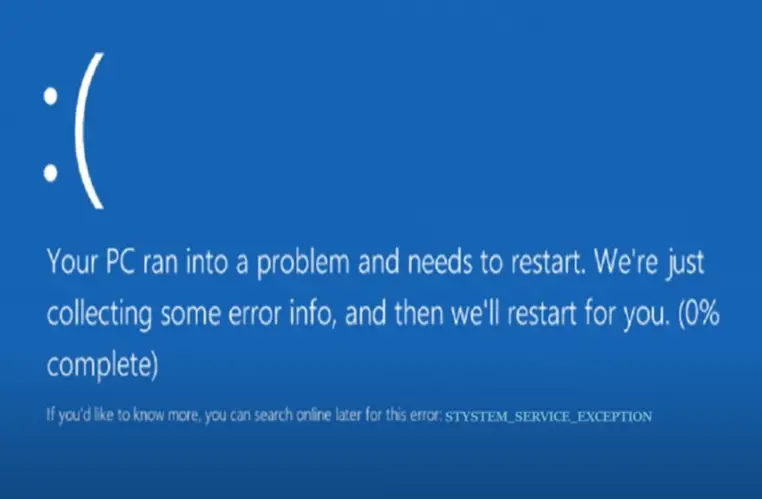
Windows frequently names the specific driver file responsible in parentheses next to the stop code, something like SYSTEM_SERVICE_EXCEPTION (nvlddmkm.sys) for an Nvidia graphics driver, or (rtwlane.sys) for a Realtek wireless driver.
If you catch this name, you can skip straight to updating, rolling back, or reinstalling that specific driver instead of working through every fix on this list.
Find it after the fact: Open Event Viewer (search for it in the Start menu), navigate to Windows Logs > System, and look for a red “Error” entry timestamped around when the crash happened. The driver name is often listed there even if you missed it on the blue screen itself.
Related: How to Fix the “Wi-Fi Doesn’t Have a Valid IP Configuration” Error?
Can’t Boot Into Windows at All? Start Here
If SYSTEM_SERVICE_EXCEPTION is crashing your PC before you can even reach the desktop. A boot loop where it crashes, restarts, and crashes again. None of the fixes below will help until you get into a stable environment first.
- Force Windows into the Recovery Environment (WinRE). As Windows attempts to boot and you see the logo or spinning dots, hold the power button for about 7-10 seconds to force a shutdown. Do this two or three times in a row. On the next attempt, Windows should automatically detect the repeated failed boots and load into the Windows Recovery Environment instead.
- Try Startup Repair first. From the WinRE screen, select Troubleshoot > Advanced options > Startup Repair. Let it run fully. It’s designed specifically to detect and fix the kind of corruption that causes boot loops, and it sometimes resolves the issue without you touching anything else.
- If that doesn’t work, boot into Safe Mode instead. From the same Advanced options menu, select Startup Settings > Restart, then choose Safe Mode (or Safe Mode with Networking if you need internet access to download a driver). Safe Mode loads only essential drivers, which is usually enough to get you to a working desktop where you can run the fixes below.
Once you’re in Safe Mode or back to a normal desktop, continue with the numbered fixes.
10 Fixes for SYSTEM_SERVICE_EXCEPTION
Work through these roughly in order. The first few resolve the majority of cases; the later ones are for when the basics don’t clear it up.
1. Update Windows
Out-of-date system files are a common trigger. Press Windows key + I to open Settings, go to Windows Update, and install anything pending. Save your work first. The update process will restart your PC, and in a large share of cases, that alone clears the error.
2. Update or Roll Back the Suspect Driver
If you identified a specific driver from the BSOD screen or Event Viewer, deal with that one directly:
- Update it: Open Device Manager, find the device, right-click it, and select Update driver > Search automatically for drivers.
- Roll it back: If the crashes started right after a driver update, right-click the device in Device Manager, select Properties > Driver tab > Roll Back Driver. This option is only available if Windows has a previous version saved, which is common right after an update.
If you don’t know which driver is responsible, open Device Manager, look for any device with a yellow warning icon, and update that one first.
Graphics and network adapter drivers are the most frequent offenders, so it’s worth checking those manufacturer websites (Nvidia, AMD, Intel, Realtek) directly for the latest version if Windows Update doesn’t offer one.
3. Run the Built-In Windows Troubleshooter
- Open Settings > Update & Security > Troubleshoot (Windows 10) or Settings > System > Troubleshoot > Other troubleshooters (Windows 11).
- Find Blue Screen and run it.
- Follow the on-screen prompts and restart when it’s done.
4. Disconnect Recently Added Hardware
A newly connected peripheral ( a USB dock, external drive, webcam, or printer) with a buggy or mismatched driver is a common and easily overlooked cause. Unplug anything you’ve added recently, restart, and see if the crashes stop.
If they do, the device’s driver is your culprit; check the manufacturer’s site for an updated version before reconnecting it.
5. Uninstall Recently Installed Software
Newly installed apps, especially ones that install their own background services or low-level system hooks (VPN clients, virtualization tools, some antivirus suites), can trigger this error.
Go to Settings > Apps > Apps & features, sort by install date, and uninstall anything installed around when the crashes started, one at a time, restarting between each.
6. Temporarily Disable Third-Party Antivirus
Security software that hooks deeply into system processes can occasionally conflict with legitimate services and trigger this error. Disable your third-party antivirus temporarily to test.
If the crashes stop, update the antivirus to its latest version before re-enabling it, or consider switching to Windows Defender, which is built-in and well-integrated with the OS.
It’s also worth running a scan with a second opinion tool, since deeply embedded malware sometimes disguises itself as a legitimate system service to trigger exactly this kind of crash. Malwarebytes (available on Amazon) is a solid second-opinion scanner that runs alongside your main antivirus without conflicting with it.
7. Run CHKDSK and SFC/DISM
These three built-in tools catch different categories of corruption, so it’s worth running all three:
- Open Command Prompt as administrator (search “cmd”, right-click, Run as administrator).
- Run
chkdsk /rand press Enter. This scans your drive for file system errors and bad sectors, and will prompt to run on the next restart if the drive is in use. - Run
DISM /online /cleanup-image /restorehealthand let it finish. This can take up to 20 minutes, so don’t interrupt it even if it looks stuck. - Once DISM completes, run
sfc /scannowto scan and repair corrupted system files.
If CHKDSK reports a high number of bad sectors, that’s a sign your drive itself may be failing rather than just having a software glitch. See the note on aging drives below.
8. Test Your RAM
Faulty memory is a less common but genuine cause of this error, since RAM corruption can scramble the exact kind of system-level data that triggers a service exception.
Search for Windows Memory Diagnostic in the Start menu, run it, and let your PC restart to complete the test. If it reports hardware errors, the RAM module itself needs replacing; running with known-bad RAM will keep causing random crashes beyond just this one error.
If the diagnostic flags an issue, a reliable, budget-friendly kit like Crucial RAM is a straightforward, well-reviewed replacement option which is available on Amazon.
9. Use Driver Verifier to Catch an Elusive Driver (Advanced)
If you’ve updated your obvious drivers and the crashes continue, Windows includes a built-in tool called Driver Verifier (verifier.exe) that stress-tests every driver on your system and will trigger a BSOD that names the exact culprit; even one you wouldn’t have suspected.
Back up your important files first, since Driver Verifier intentionally pushes drivers to fail to identify them, which means more crashes in the short term before you get your answer.
Search for “verifier” in the Start menu, run it, choose Create standard settings, select all drivers (or just non-Microsoft ones to narrow it down faster), and restart.
Once you have the driver name from the resulting crash, disable verifier again by running verifier /reset from an administrator Command Prompt, then update or roll back the identified driver.
10. Reset This PC
If nothing above resolves it, Windows’ built-in Reset feature replaces your system files with a clean set while optionally keeping your personal files intact. This often clears whatever corruption is behind the recurring crash.
Go to Settings > Update & Security > Recovery (Windows 10) or Settings > System > Recovery (Windows 11), and select Get Started under Reset this PC.
Back up anything important first, since this restarts your machine, and choose whether to keep your files or remove everything when prompted.
Related: Fix UNEXPECTED_KERNEL_MODE_TRAP (0x7F) in Windows 11/10
A Note on Aging Hard Drives and SSDs
A failing drive can corrupt system files as they’re loaded into memory, which can present as exactly this kind of BSOD even when the real problem is hardware, not software.
If CHKDSK repeatedly finds errors, or your drive is several years old and you haven’t checked its health recently, it’s worth cloning your data to a fresh drive before it fails outright rather than after.
For a fast, reliable upgrade that also gives your whole system a performance boost, the Samsung 990 PRO NVMe SSD is a well-regarded option on Amazon worth cloning your current drive onto.
Symptom, Likely Cause, and What to Try First
| What You’re Seeing | Most Likely Cause | Try This First |
|---|---|---|
| Crash names a driver in parentheses | That specific driver is faulty | Update or roll back the named driver |
| Started right after a driver/Windows update | Recently updated driver | Roll back the driver |
| Started after installing new hardware | Peripheral driver conflict | Disconnect the device, test again |
| Started after installing new software | App conflicts with system services | Uninstall the recent app |
| Can’t reach the desktop at all | Boot loop from a bad driver at startup | Force WinRE, use Safe Mode |
| CHKDSK reports bad sectors | Aging or failing drive | Back up data, consider drive replacement |
| Windows Memory Diagnostic reports errors | Faulty RAM | Replace the affected memory module |
| Random, no clear pattern | Possible malware or deep corruption | Run a malware scan, then SFC/DISM |
Myth vs. Fact
Myth: A BSOD always means your hardware is failing. Fact: The large majority of SYSTEM_SERVICE_EXCEPTION errors trace back to a software-level driver issue, not failing hardware. Hardware causes (RAM, drive) exist but are less common than driver conflicts.
Myth: You need to reinstall Windows to fix this. Fact: A full reinstall is a last resort. Most cases resolve with a driver update, rollback, or the built-in SFC/DISM repair tools well before a reinstall becomes necessary.
Myth: Disabling your antivirus permanently is the fix. Fact: Disabling antivirus is a diagnostic test, not a long-term solution. If it turns out to be the cause, update it to the latest version rather than leaving your PC unprotected.
Myth: If Windows Update doesn’t show a driver update, there isn’t one. Fact: Windows Update doesn’t always carry the newest driver versions, especially for graphics cards. Checking the manufacturer’s own website (Nvidia, AMD, Intel, Realtek) often turns up a newer version that fixes known bugs.
Related: KERNEL_MODE_HEAP_CORRUPTION (0x13A) Fix: 12 Proven Ways
Quick Troubleshooting Checklist
- [1] Checked the BSOD screen (or Event Viewer) for a named driver
- [2] Updated Windows fully
- [3] Updated or rolled back the suspect driver
- [4] Ran the built-in Blue Screen troubleshooter
- [5] Disconnected any recently added hardware
- [6] Uninstalled any recently installed software
- [7] Temporarily disabled third-party antivirus to test
- [8] Ran CHKDSK, DISM, and SFC
- [9] Tested RAM with Windows Memory Diagnostic
- [10] Backed up important files before any advanced or reset-level fix
Common Mistakes to Avoid
- Jumping straight to a full Reset or reinstall before trying driver-level fixes, which resolve most cases without wiping anything.
- Ignoring the driver name shown on the BSOD screen, which is often the fastest path to a fix and gets skipped because the screen disappears quickly.
- Running Driver Verifier without backing up first – it’s a powerful diagnostic tool, but it’s designed to provoke crashes, so go in prepared.
- Assuming it’s hardware failure immediately. Check the more common, easier-to-fix software causes first before spending money on new RAM or a new drive.
Conclusion
SYSTEM_SERVICE_EXCEPTION is almost always traceable to a specific driver, and the fastest route to fixing it is identifying which one; either from the crash screen itself, Event Viewer, or by process of elimination through recently added hardware and software.
If you can reach your desktop, work through Windows updates, driver updates, and the SFC/DISM repair tools first.
If the crash loop won’t even let you log in, get into Safe Mode first and troubleshoot from there. A full Reset or reinstall is rarely necessary and should be your last option, not your first.
Related: DISM Error 1910 Fix: “The Object Exporter Specified Was Not Found”
Frequently Asked Questions
What causes the SYSTEM_SERVICE_EXCEPTION error in Windows?
It’s most commonly caused by a faulty, outdated, or incompatible driver ( frequently graphics, network, or peripheral drivers ), though corrupted system files, failing RAM, a failing drive, or malware can also trigger it.
How do I find out which driver is causing the crash?
Check the blue screen itself for a driver filename in parentheses next to the stop code, or check Event Viewer under Windows Logs > System for a red error entry around the time of the crash.
Can I fix this error if Windows won’t boot at all?
Yes. Force the Windows Recovery Environment by interrupting the boot process two or three times, then use Startup Repair or Safe Mode to get to a stable environment where you can run the standard fixes.
Will updating my drivers fix this error?
In most cases, yes. Outdated or buggy drivers are the leading cause of this error, and updating (or occasionally rolling back) the responsible driver resolves the majority of cases.
Is SYSTEM_SERVICE_EXCEPTION caused by bad RAM?
It can be, though it’s less common than a driver issue. Running Windows Memory Diagnostic will confirm whether faulty memory is contributing to the crash.
Does this error mean my hard drive is failing?
Not necessarily. It’s usually a software-level driver issue. However, if CHKDSK repeatedly reports bad sectors, that does point toward a failing drive as a contributing factor.
Can malware cause this BSOD?
Yes. Malware can disguise itself as a legitimate system process to trigger exactly this kind of crash, which is why running a malware scan is a worthwhile step if driver and system file fixes don’t resolve it.
What’s the difference between SFC and DISM?
SFC (System File Checker) scans specifically for corrupted Windows system files, while DISM repairs the underlying Windows image that SFC relies on. Running DISM first, then SFC, gives SFC the best chance of successfully fixing what it finds.
Should I roll back a driver or update it?
If the crashes started right after a driver update, roll it back first. If you haven’t updated that driver in a while, updating it is the better first move.
What is Driver Verifier and is it safe to use?
Driver Verifier is a built-in Windows tool that stress-tests drivers to identify a faulty one by deliberately provoking crashes. It’s safe to use, but back up your files first, since you should expect more crashes in the short term while it’s running.
Will resetting my PC fix SYSTEM_SERVICE_EXCEPTION?
Often, yes, since it replaces system files with a clean set. It’s an effective last resort, but should come after driver-level fixes and the SFC/DISM repair tools, not before them.
Can a recently installed program cause this crash?
Yes, especially software that installs background services or low-level system hooks, like VPN clients or certain security suites. Uninstalling anything installed around when the crashes started is a useful diagnostic step.
Does this error happen on Windows 10 and Windows 11 both?
Yes. The underlying cause and the vast majority of fixes are identical across both versions, with only minor differences in menu wording and navigation.
How do I know if it’s my graphics driver specifically?
If the BSOD names a file like nvlddmkm.sys (Nvidia), atikmpag.sys (AMD), or igdkmd64.sys (Intel), that confirms a graphics driver is responsible. Updating directly from the manufacturer’s website, rather than relying only on Windows Update, is the most reliable fix.
Is it safe to keep using my PC if this error keeps happening?
Occasional, resolved crashes aren’t dangerous to your hardware, but repeated crashes risk unsaved data loss and can point to a worsening driver or hardware issue, so it’s worth troubleshooting promptly rather than ignoring it.
Can a Windows Update itself cause this error?
Yes, occasionally a buggy update introduces a driver conflict. If the crashes started right after an update, checking Windows Update’s update history and, if needed, uninstalling the most recent update is a reasonable step.
What should I back up before running advanced fixes like Driver Verifier or Reset this PC?
Any documents, photos, or files you can’t easily recreate. Cloud storage or an external drive both work. The key is doing it before these more disruptive steps, not after.
We hope you found this information useful, and please like and follow us on Facebook and Twitter for regular updates.
We also request that you bookmark this page for future reference. Sign up for our free newsletter as well to receive new information in your inbox regularly and stay technically up to date.
Disclosure: If you follow our links to a retailer’s website and make a purchase, we will get an affiliate commission on some, but not all, of the items or services we promote. This will cause no price change for you.
You May Be Interested in Reading:
- Why Is “Your Location Is Currently in Use” Displayed on Windows?
- How to Address [pii_email_a427253221614b6547d5] Error Code in Outlook Mail?
- How to Fix Windows Unexpected Kernel Mode Trap Error in Simple Steps?
- 6 Simple [Solved] Fixes for the Kernel Mode Heap Corruption Error on Windows 10
- How to Automatically Lock Your PC Using Dynamic Lock in Windows?
.