PC Upgrade Guide 2026: What to Upgrade First for Better Performance
Your computer used to feel fast and responsive. Now, every click comes with a noticeable delay. Chrome starts struggling when you open more than a few tabs. Photoshop seems to pause whenever you apply a filter.
Before you spend $1,000 or more on a new PC, take a closer look at the hardware. In many cases, the problem isn’t the entire computer. A few key components are often responsible for most performance issues.
This guide walks through exactly what to upgrade, in what order, and how to figure out which component is actually holding you back, instead of guessing and buying the wrong thing.
Quick Answer: What Should You Upgrade First?
If you only read one section, read this one.
- Still on a hard drive (HDD)? Upgrade to an SSD first. Nothing else comes close for the money.
- Under 16GB of RAM? Add RAM next. It’s cheap and takes ten minutes.
- Games running rough, everything else fine? Your GPU is next.
- CPU pegged at 100% during normal use, even after the above? Only now consider a CPU (and likely a new motherboard).
That order isn’t arbitrary. It shows which upgrades give the average person the most noticeable speed gain per dollar spent, from the cheapest/highest-impact to the most expensive/most situational.
First, Do This Before Spending Any Money
Before you buy a single component, rule out the free fixes. A cluttered, poorly maintained PC can feel as slow as genuinely outdated hardware.
- Clean up your storage. Uninstall programs you don’t use and clear out old downloads, temp files, and duplicate media. Keep at least 10–15% of your drive free. A nearly full drive (especially an SSD) slows down on its own.
- Run a malware scan. Cryptominers, adware, and background malware are a surprisingly common cause of a PC that “just got slow” for no reason.
- Trim your startup programs. Open Task Manager (Ctrl+Shift+Esc) → Startup apps, and disable anything you don’t need launching automatically. A dozen background apps fighting for RAM at boot will make even fast hardware feel sluggish.
- Update your drivers, especially GPU drivers. Outdated graphics drivers are a classic, invisible performance killer.
- Find out what’s actually bottlenecking you. Open Task Manager’s Performance tab while doing your normal heavy task (gaming, exporting video, running your usual apps) and watch the numbers:
- GPU pinned near 100% while CPU stays well below it → GPU is your limiting factor.
- CPU pinned near 100% (check per-core) while GPU has headroom → CPU is your limiting factor.
- RAM usage sitting above 85–90% → you need more memory; the system is likely swapping to disk, which causes the stuttering (not slowdown) feeling.
If none of that changes anything, it really is time to upgrade hardware.
1. Upgrade Your Storage Drive (Highest Impact for the Money)
If you’re still running a traditional spinning hard drive as your main drive, this is the single upgrade that will make your PC feel like a different machine.
Why HDDs feel so slow: they physically spin a disc and move a read/write head to find data. A 5,400 RPM drive writes around 100MB/s; a 7,200 RPM drive around 150MB/s.
Compare that to an SSD’s 500MB/s+ over the same SATA connection, or an NVMe drive pushing 5,000–7,000MB/s. That’s not a small gain. It’s the difference between a two-minute boot and a fifteen-second one.
SATA SSD vs. NVMe SSD vs. PCIe 5.0 – which do you actually need?
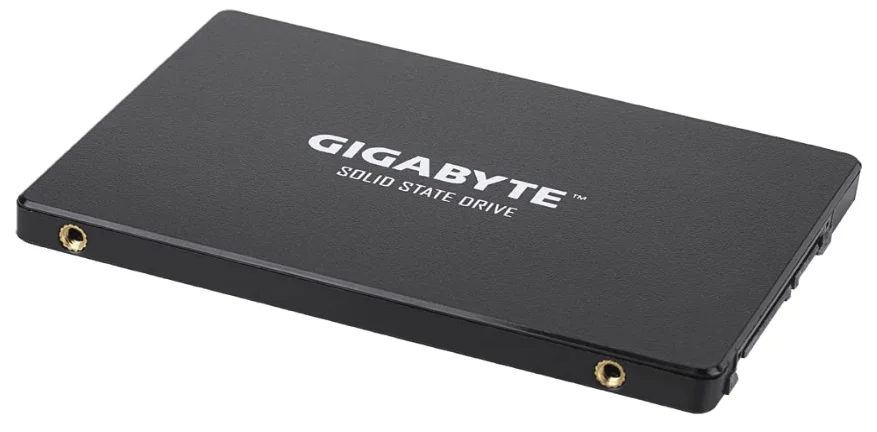
| Drive type | Real-world speed | Best for | 2026 price for 1TB |
|---|---|---|---|
| SATA SSD | ~500–550 MB/s | Older laptops/desktops without M.2 slots | Budget-friendly |
| NVMe PCIe 4.0 SSD | ~7,000 MB/s | Nearly everyone; gaming, work, general use | Mid-range, best value |
| NVMe PCIe 5.0 SSD | 12,000–14,500 MB/s | Video editors, 3D artists, AI/ML workloads moving huge files | Premium |
Here’s the honest, non-marketing answer: for the vast majority of people, a PCIe 4.0 NVMe drive is the sweet spot in 2026.
Related: How to Tell If Your SSD Is Failing: Real Warning Signs
For most everyday tasks, PCIe 5.0 SSDs don’t offer a noticeable improvement. Boot times, app launches, and game loading often feel similar to those of PCIe 4.0 drives. These tasks rely more on small random reads and application processing than on maximum sequential speeds.
Gen5 SSDs can also run hotter. Many models need a dedicated heatsink to manage the extra heat.
For most users, PCIe 5.0 makes more sense for demanding workloads. Think 4K or 8K video editing, large 3D projects, and local AI model workloads. That’s where the extra bandwidth can be much more useful.
A quick note on capacity: with modern game installs regularly exceeding 100GB, 2TB is now a more realistic baseline than the 512GB or 1TB that used to be standard advice. Running low on drive space slows everything down, not just games.
One thing to know before you buy: replacing your main system drive means reinstalling Windows (or Linux) on it, unless you clone your existing drive over. Factor that into your upgrade weekend.
If you need serious capacity on a budget and don’t want to give up speed entirely, a hybrid setup works well: a smaller, fast NVMe drive for your OS and most-used apps, paired with a larger, cheaper HDD or SATA SSD for bulk storage like photos, videos, and archives.
If you’re shopping for your first NVMe upgrade, a well-reviewed 2TB PCIe 4.0 drives like the WD Black SN850X or Samsung 990 Pro is a safe which are available on Amazon, future-proof pick that won’t need replacing again for years.
Related: M.2 vs U.2 vs U.3: SSD Form Factors Compared
2. Upgrade Your RAM (Easiest, Cheapest, Almost No Risk)
If you’ve never opened your PC’s case before, RAM is the place to start. It’s inexpensive, takes about ten minutes on a desktop, and requires no technical expertise beyond matching the right RAM type to your motherboard.
Signs you need more RAM:
- Your web browser slows to a crawl with more than a handful of tabs open.
- Switching between open programs takes a visible moment.
- Task Manager shows RAM usage sitting above 85–90% during normal use.
- You get sudden stutters or freezes (not just low frame rates). This is a strong sign your system is swapping data to your much slower drive because RAM is full.
So how much RAM do you actually need in 2026?
- 8GB – the bare functional minimum. Expect regular slowdowns with any multitasking.
- 16GB – the realistic baseline for most people today: browsing with 20+ tabs, photo editing, streaming, and mainstream gaming.
- 32GB – the recommended sweet spot if you want your PC to stay comfortable for the next several years, especially with modern AI-assisted features in apps like Photoshop and Windows itself quietly using more background memory than before, or if you do serious multitasking, streaming, or content creation.
- 64GB – a workflow upgrade, not a gaming one. Only worth it for heavy video editing, 3D rendering, running virtual machines, or local AI training. For gaming alone, this money is better spent on your GPU.
DDR4 vs. DDR5 – don’t overthink this one: if you’re upgrading an existing PC, check what your motherboard supports and stick with it.
DDR4 and DDR5 RAM are not physically compatible with each other. You can’t simply replace DDR4 with DDR5 on the same motherboard. Moving to DDR5 usually requires a new motherboard and, in many cases, a compatible CPU as well. At that point, you’re doing more than a simple RAM upgrade. You’re essentially building a new PC.
If you’re doing a fresh build, DDR5 is now the standard on current Intel and AMD platforms, and a DDR5-6000 CL30 kit is widely considered the current sweet spot between price and performance.
Two upgrade rules that save people money and headaches:
- Always buy RAM in a matched pair (or matched set) for dual-channel mode. This roughly doubles your effective memory bandwidth compared to a single stick of the same total capacity.
- Don’t mix brands, speeds, or capacities where you can avoid it. It’s not always fatal, but it can cause instability, and you won’t get the performance the faster stick promised.
Related: Can You Mix RAM Brands or Sizes on a PC or a Laptop?
A word for laptop owners: many modern ultrabooks (recent MacBooks, Dell XPS models, most consumer HP and ASUS laptops) now solder RAM directly to the motherboard, meaning it genuinely cannot be upgraded after purchase.
Check whether your laptop uses SO-DIMM slots (upgradeable) or soldered memory before assuming this section applies to you. If you’re shopping for a new laptop and expect to keep it a while, buy more RAM upfront than you think you need.
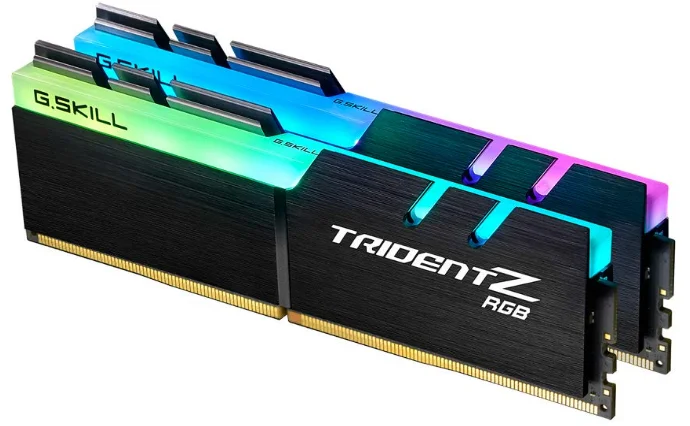
For a desktop RAM upgrade, a 32GB (2x16GB) DDR5-6000 CL30 kit from a reputable brand like Crucial or G.Skill (both are available on Amazon) hits the current price-to-performance sweet spot for most builds.
3. Upgrade Your Graphics Card (If Gaming or Creative Work Is Your Bottleneck)
This upgrade matters most for gamers, 3D artists, and anyone doing GPU-accelerated work like video rendering or AI model training. If that’s not you, you can likely skip this section.
General browsing, office work, and even 4K video playback run fine on integrated graphics today.
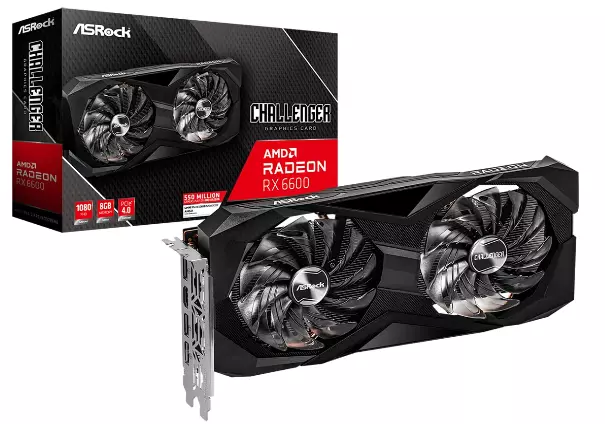
Signs it’s time for a GPU upgrade:
- Frame rates are inconsistent or low even at settings that should be easy for your card.
- You can’t enable graphical options you want (ray tracing, higher resolution, higher refresh rate) without a big performance hit.
- Task Manager shows your GPU pinned near 100% during gameplay while your CPU has headroom to spare; a classic GPU bottleneck.
Before you buy, match the card to your actual monitor. A card built for flawless 4K gaming is wasted money if you play at 1080p. You’d get better value from a mid-tier card and put the difference toward RAM or storage. The exception is high refresh-rate monitors. Even at 1080p, hitting 240Hz or higher in demanding games still needs real GPU horsepower.
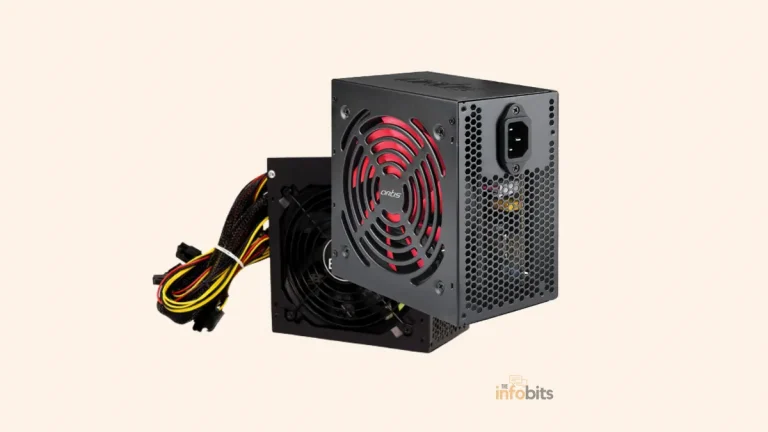
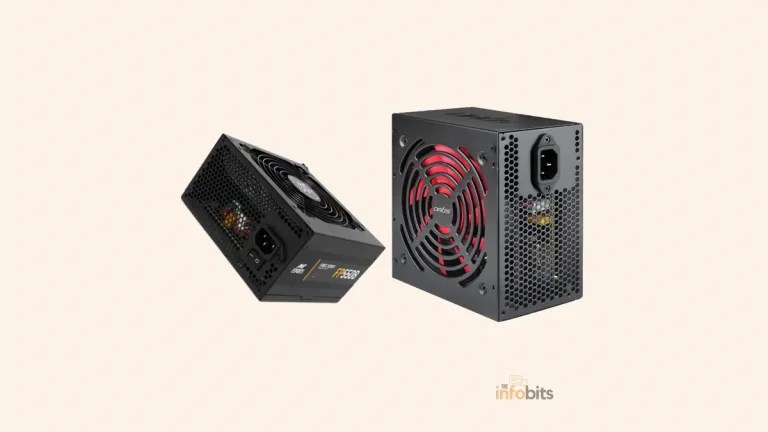
One upgrade often triggers another: check your power supply. Newer graphics cards draw more power and use different connectors than cards from a few years ago. Before buying a GPU, check its wattage requirement against your current power supply unit’s rated output. Running close to the limit risks instability or, in rare cases, hardware damage.
Related: How to Check What Power Supply (PSU) Your PC Has
Laptop owners, this one’s a hard limit: GPUs in laptops are almost always soldered directly to the motherboard for space and cooling reasons, so they typically cannot be upgraded at all. If your laptop’s integrated or soldered GPU is your bottleneck, your realistic options are an external GPU enclosure (niche and expensive) or a new machine.
4. Upgrade Your Processor (CPU) – Only If It’s a Real Bottleneck
A CPU upgrade is the most complex, most expensive, and most frequently unnecessary upgrade on this list. Read this section carefully before spending money here.
Why it’s different from the others:
- CPUs use specific physical sockets tied to specific motherboard chipsets. A meaningful CPU upgrade very often means a new motherboard too, and a new motherboard sometimes means new RAM, if it uses a different generation.
- Even when your current board “technically” supports a newer chip, it may need a BIOS update first, which you’ll want to confirm before purchasing anything.
- A small step up (say, one generation newer, similar core count) rarely delivers a difference you’ll actually feel day to day.
When it’s genuinely worth it: a significant jump ( going from an Intel Core i3 to an i5, an AMD Ryzen 3 to a Ryzen 5, or two-plus generations forward ), especially if Task Manager confirms your CPU (not GPU or RAM) is consistently maxed out during your actual workload.
Video editors, streamers, and heavy multitaskers are more likely to be CPU-bound than gamers, who are more often GPU-bound.
Before you commit, look up independent benchmark comparisons (sites like cpubenchmark.net are a good starting point) between your current chip and the one you’re considering. If the real-world performance gap is small, that money is almost always better spent on a GPU or more RAM.
The honest bottom line: if your CPU truly is the bottleneck and it would require a new motherboard, new RAM, and a new cooler to fix, price that whole bundle against a prebuilt or custom system.
Often you’re closer to “new PC” cost than “upgrade” cost at that point, and a full system gives you a clean, matched, warrantied build instead of a patchwork of mismatched generations.
5. Don’t Skip Software and Driver Updates
Free performance is still performance. Most updates are small bug fixes and security patches. Install these promptly; they’re low-risk and often include real speed improvements.
Major version updates are a different story. They typically demand more system resources than what they replace. If your hardware is already stretched thin, a major OS or application upgrade can make things feel slower, not faster.
If your PC is running acceptably right now, it’s reasonable to hold off on a major OS upgrade until you’re confident it won’t strain your current setup, or until you’ve made the hardware upgrades above.
6. Other Upgrades Worth Considering
Cooling. If your PC throttles performance under load or shuts down unexpectedly during demanding tasks, dust-clogged fans or dried-out thermal paste could be strangling your existing hardware before you spend a cent on new parts.
A CPU cooler and case fan cleaning (or replacement) is inexpensive and often overlooked.
Related: What Is a Normal GPU Temperature While Gaming?
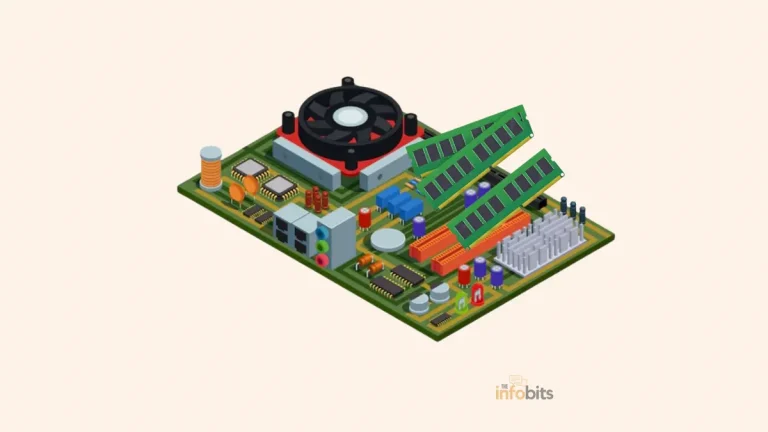
The motherboard. This is the most involved upgrade of all, since literally every other component connects through it.
Only consider it if you specifically need a socket, chipset, or RAM generation that your current board doesn’t support; on its own. A motherboard swap doesn’t meaningfully speed anything up.
Everything outside the case. A better monitor, a mechanical keyboard, a more comfortable mouse, or even your chair can improve your actual day-to-day experience more than another 5% of CPU performance ever will, especially if you’re at your desk for hours daily.
Performance isn’t only about benchmark numbers; it’s about how the machine feels to use.
Common Mistakes to Avoid
- Buying a GPU your power supply can’t handle. Always check wattage and connector requirements first.
- Chasing PCIe 5.0 storage for gaming. The real-world gains over a good PCIe 4.0 drive are negligible for games and everyday use; that money is better spent on RAM or your GPU.
- Upgrading RAM speed without checking your motherboard’s supported range. Faster kits sitting outside your board’s supported speed will simply run at a lower speed, or fail to boot.
- Assuming your laptop can be upgraded like a desktop. Many modern laptops solder RAM and GPUs directly to the board. Confirm before you buy parts you can’t use.
- Chasing a CPU upgrade before checking if you’re actually CPU-bound. Diagnose the bottleneck first; don’t guess.
- Ignoring free fixes first. A nearly full drive, riddled with startup bloat, or running on outdated drivers can mimic the symptoms of failing hardware.
Myth vs. Fact
Myth: “More RAM always means a faster PC.” Fact: Extra RAM only helps once you’re actually running out of it. If your usage never crosses 60–70%, doubling your RAM won’t produce a noticeable speed difference. That money is better spent elsewhere.
Myth: “PCIe 5.0 SSDs are a big upgrade over PCIe 4.0.” Fact: For boot times, game loading, and everyday use, the two are functionally indistinguishable in independent testing. The gap only shows up in workloads moving huge files, like professional video editing.
Myth: “A new CPU will fix a slow gaming PC.” Fact: Most gaming performance issues trace back to the GPU or insufficient RAM, not the CPU. Confirm your actual bottleneck with Task Manager before spending on a processor.
Final Thoughts
Upgrading your PC does not mean you need to replace the entire system. In many cases, one or two smart upgrades can make a much bigger difference than buying a completely new machine.
The key is to find the bottleneck first. Don’t upgrade based on guesswork. Use Task Manager while doing the things you normally do. Check your CPU, GPU, RAM, and storage usage. This gives you a much clearer idea of where your PC is struggling.
For many older PCs, an SSD is the best place to start. Moving from an HDD to an SSD can make Windows feel dramatically faster. If your RAM regularly stays above 85–90%, adding more memory may be the better choice. Gamers should pay close attention to GPU usage. A GPU that stays near 100% during gameplay is a strong sign that it’s time for a graphics upgrade.
CPU upgrades deserve more planning. A newer processor may also require a new motherboard, RAM, or cooler. At that point, compare the total cost with buying a new PC.
Don’t overlook the free fixes, either. Remove unnecessary startup apps. Keep enough storage space free. Update your drivers. Clean dust from your cooling system.
The best PC upgrade is not always the newest or most expensive part. It’s the one that removes your biggest performance limitation.
Diagnose your actual bottleneck before spending a cent. Task Manager’s Performance tab, watched during your normal heavy workload, will point you to whichever component is really holding your PC back.
So, diagnose first. Upgrade second. Spend where you’ll actually notice the difference.
Frequently Asked Questions
What’s the single best PC upgrade for the money?
For most people still using a hard drive, switching to an SSD (ideally an NVMe drive) delivers the single biggest, most noticeable improvement ( faster boots, faster app loading, and a generally snappier feel ) for a relatively modest cost.
How do I know if I need more RAM or a better GPU?
Open Task Manager’s Performance tab while doing your normal heavy task. If RAM usage sits above 85–90%, add RAM. If your GPU sits near 100% while your CPU has headroom during gaming, upgrade your GPU instead.
Is 16GB of RAM enough in 2026?
For general use, browsing, and mainstream gaming, yes; 16GB is a comfortable baseline. If you multitask heavily, stream, edit video or photos, or want your PC to stay relevant for several more years, 32GB is the safer choice.
Do I need a PCIe 5.0 SSD?
Almost certainly not, unless you regularly move very large files for video editing, 3D work, or AI/ML workloads. For gaming and everyday computing, a quality PCIe 4.0 NVMe drive performs virtually identically at a lower price and with far less heat.
Can I upgrade the RAM or GPU in my laptop?
It depends entirely on the model. Many laptops from the last few years ( particularly thin consumer ultrabooks and most MacBooks) solder RAM and use non-upgradeable integrated or soldered GPUs. Business laptops from Lenovo, HP, and Dell are more likely to retain upgradeable SO-DIMM RAM slots. Check your exact model’s specifications before assuming an upgrade is possible.
Will upgrading my SSD delete my files?
If you’re adding a second drive, no. Your existing drive and files stay untouched. If you’re replacing your main drive, you’ll either need to clone your current drive to the new one or do a fresh install, which does require backing up your files first.
Does switching from an HDD to an SSD really cut boot time that much?
Yes. It’s one of the most consistently reproducible upgrades in PC hardware. Many users see boot times drop from two minutes or more down to under fifteen seconds.
Do I need to reinstall Windows after a storage upgrade?
Only if you’re replacing your primary boot drive and not cloning it. Adding a second, secondary drive for extra storage doesn’t require any reinstall.
What’s a CPU/GPU bottleneck, and does it damage my PC?
A bottleneck simply means one component is limiting how fast another can work. It’s a performance ceiling, not a hardware risk. Even thermal throttling, where a chip slows itself down to stay cool, is a built-in safety behavior, not damage.
Should I upgrade my motherboard?
Only if you need a socket, chipset, or RAM generation your current board doesn’t support. Typically because you’re doing a significant CPU upgrade. On its own, a motherboard swap provides no direct performance boost.
Is DDR5 worth upgrading to from DDR4?
Not on its own. Real-world gaming benchmarks show only a 1–3% average FPS difference between well-tuned DDR4 and DDR5 kits. If you’re already on a DDR4 platform, going from 16GB to 32GB DDR4 will deliver more real-world benefit than switching platforms just to get DDR5.
How much RAM do video editors and 3D artists need?
32GB is a reasonable working minimum; 64GB is where things get genuinely comfortable for large 4K/8K projects, heavy multitasking with rendering software, or running virtual machines alongside your main work.
My PC is overheating – is that a sign I need new hardware?
Not necessarily. Check your cooling first: dust buildup and old thermal paste are common, inexpensive-to-fix causes of overheating that have nothing to do with your components being outdated.
Is it ever cheaper to just buy a new PC instead of upgrading?
Yes, particularly if your bottleneck is the CPU and fixing it would require a new motherboard and RAM as well. At that point, price the full bundle against a prebuilt system. You may be closer to “new PC” money than you expect, with the benefit of a clean, warrantied build.
Does upgrading my graphics card require a new power supply?
Sometimes. Modern GPUs often draw more power and use different connectors than older cards. Check your desired card’s wattage requirement against your current PSU’s rated output before buying.
What’s the minimum free hard drive space I should keep?
Aim to keep at least 10–15% of your drive free at all times. A nearly full drive ( especially an SSD) can slow down even if it has plenty of raw speed on paper.
Can mixing different RAM brands or speeds break my PC?
It won’t usually damage anything, but it can cause instability, and your system will typically run all sticks at the speed of the slowest one. So you won’t get the performance you paid for. Matched pairs of the same brand, model, and speed are the safer, more predictable choice.
We hope you found this PC upgrade solution useful, and do like and follow us on Facebook and Twitter to receive frequent updates. Furthermore, we request that you bookmark this page for future reference.
Sign up for our free newsletter as well to receive new information directly in your email and stay informed technically.
Disclosure: If you follow our links to a retailer’s website and make a purchase, we will get an affiliate commission on some, but not all, of the items or services we promote. This will cause no price change for you.