Is Your Smart TV Watching You? How to Check Its Network Traffic
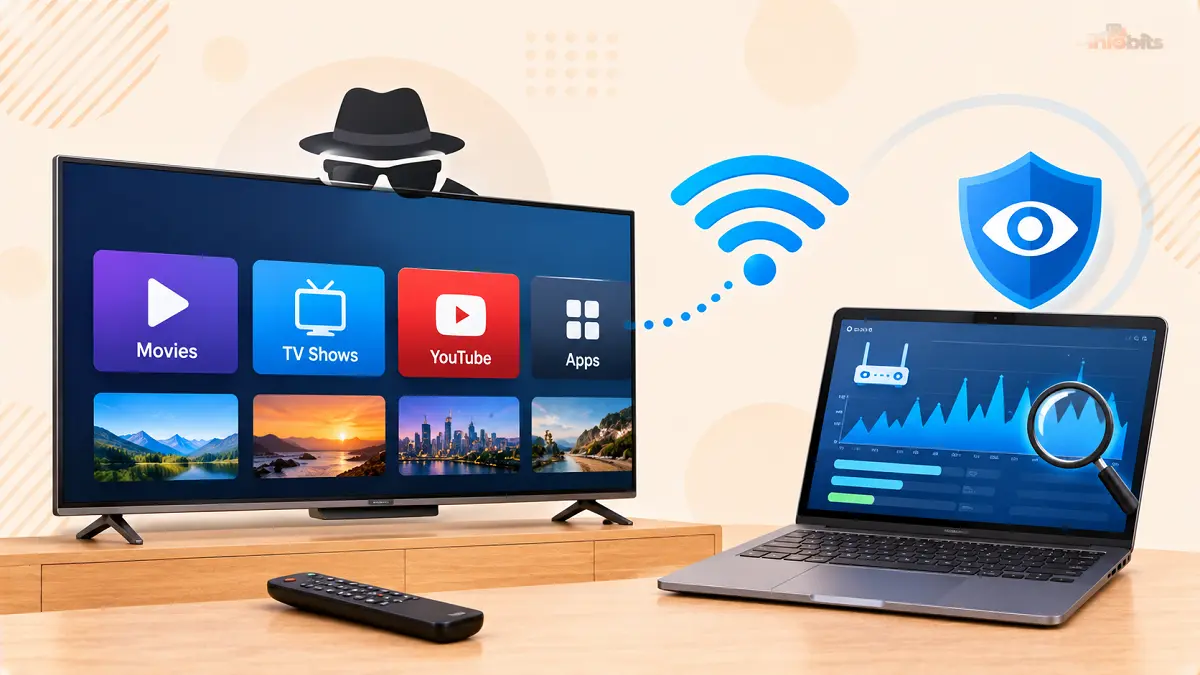
Your smart TV doesn’t need to be hacked to be nosy. Straight out of the box, it talks to the manufacturer, to ad platforms, to app servers and, on many models, to a service that tries to work out what’s playing on your screen.
That last piece is called automatic content recognition, or ACR, and it’s behind a wave of lawsuits. In December 2025, the Texas Attorney General sued Samsung, LG, Sony, Hisense and TCL over how their TVs collect viewing data.
Samsung settled in February 2026, and LG followed in May. As of late November 2026, reports say the cases against Sony, Hisense and TCL are still open.
Here’s the catch. The privacy menu tells you what the TV says it’s doing. Your network shows you what it’s actually doing. And you can check it yourself with tools that are free or close to it.
This guide walks you through four ways to do that, from a five-minute router check to a full Wireshark capture. More importantly, it shows you how to run a simple before-and-after test, so you can see with your own eyes whether switching ACR off really quiets your TV down.
Quick answer: Yes, most smart TVs contact manufacturer and advertising servers, and many use ACR to identify what’s on screen, even when you’re only using the TV as an HDMI display. To check yours, find the TV’s IP address, log its DNS lookups (Pi-hole, AdGuard Home or your router) or capture its traffic in Wireshark, then compare a baseline with a second capture after you switch ACR off. You can’t read the encrypted content, but you can see who the TV talks to, how often, and whether your opt-out works.
In this guide you’ll learn:
- What smart TVs collect, and what ACR really is
- What the research and the Texas lawsuits tell us (and what they don’t)
- Four ways to watch your TV’s network traffic, from easy to advanced
- A before-and-after test that proves whether your privacy settings work
- How to read the results, turn ACR off by brand, and lock things down further
What Is Your Smart TV Actually Collecting?
ACR in Simple Language
Automatic content recognition works a bit like Shazam, only for video. The TV regularly samples what’s on screen, sends a compact description of it to a server, and the server matches it against a library to work out what you’re watching. The manufacturer can then use that viewing history to build audience segments and sell targeted advertising.
Exactly what gets sent varies by brand, and descriptions range from “fingerprints” to “screenshots”. The Texas complaints describe ACR as capturing the screen every 500 milliseconds. That’s the state’s characterization. The manufacturers present ACR as an optional feature that powers recommendations and personalized ads.
Where ACR works, and where it doesn’t
Researchers at University College London, UC Davis, and Universidad Carlos III de Madrid tested Samsung and LG TVs and presented their findings at the ACM Internet Measurement Conference in 2024. Their results are the best public evidence we have on how ACR behaves on the network:
- ACR traffic appeared when watching live TV and when the TV was used as a plain external display over HDMI (a laptop, a console, a cable box).
- It did not appear when streaming through third-party apps such as Netflix or YouTube.
- Opting out stopped the traffic to the ACR servers.
- Being logged in or out of an account made no difference.
- UK and US TVs contacted different ACR domains. In the US, ACR was also active while using the TV platform’s own streaming app, which wasn’t the case in the UK.
The HDMI result surprises people. Your TV doesn’t need to be “smart” to see the picture, because the picture passes straight through it.
The rest of the chatter
ACR gets the headlines, but it’s only one kind of traffic. Here’s how the usual suspects break down:
| Traffic type | What it does | Normal? |
|---|---|---|
| Time sync and connectivity checks | Keeps the clock right, confirms the internet works | Yes |
| Firmware and app updates | Security patches and new features | Yes, and worth keeping |
| Streaming app traffic | Netflix, YouTube and their content delivery networks | Yes |
| Ads and home-screen content | Loads the sponsored tiles and banners | Common, avoidable |
| Telemetry and diagnostics | Usage stats, crash reports, button presses | Common, often optional |
| ACR | Identifies what’s on screen for ad targeting | Optional, your call |
| Voice assistant | Sends audio after the mic button or wake word | Expected when you use it |
A widely cited 2019 study of Roku and Amazon Fire TV channels found tracker traffic on 69% of Roku channels and 89% of Fire TV channels it examined. It’s older research, but it explains why swapping your TV for a streaming stick doesn’t magically end the tracking. The tracking moves with you.
Why You Can’t Just Trust the Settings Menu
If the privacy toggle worked perfectly and was easy to find, you wouldn’t need to read a guide like this. Three things get in the way.
Opting out is harder than opting in. The UCL and UC Davis researchers described the opt-out process as involving several settings spread across sub-menus, while opting in takes a single click. Texas made a similar claim about Samsung, alleging that opting out was scattered across four or more menus and more than 15 clicks.
Every brand calls it something different. Samsung calls ACR Viewing Information Services. LG calls it Live Plus. Sony’s Google TV models use Samba Interactive TV. Vizio uses Viewing Data. On Roku TVs, it hides behind “Use info from TV inputs”.
Legal settlements are narrow. Samsung agreed to get express consent before collecting ACR data from Texas consumers and to rewrite its on-screen prompts. LG agreed to get informed consent, show a pop-up disclosure, and not transfer viewing data to the Chinese Communist Party.
LG admitted no wrongdoing. Both agreements are with the State of Texas, and neither guarantees the same changes on your TV if you live elsewhere. Sony, Hisense, and TCL haven’t settled, and Hisense has been under a temporary restraining order covering Texas consumers since December 2025, according to reports. Court cases move, so check the Texas Attorney General’s news page for the latest.
So we would like to suggest you don’t assume; verify. That’s what the rest of this guide is for.
Smart TV Tracking: Myth vs Fact
| Myth | Fact |
|---|---|
| “If I never sign in, my TV can’t track me.” | In the UCL and UC Davis tests, login status didn’t change ACR traffic. |
| “ACR only watches the TV’s built-in apps.” | It was active on live TV and on HDMI inputs, including a laptop plugged in. |
| “Netflix and YouTube get scanned by ACR too.” | The study saw no ACR traffic for third-party apps. Those apps run their own tracking, which is a separate matter. |
| “A VPN fixes this.” | A VPN encrypts the route, but the TV still sends the same data to the same servers. |
| “Switching the TV off stops everything.” | Many TVs stay networked in standby. Only a capture can tell you what yours does. |
| “Seeing an ACR domain in the logs proves something shady.” | It proves the feature is active. What matters is whether you consented, and whether the traffic stops after you opt out. |
What Network Monitoring Can and Can’t Tell You
Let’s set honest expectations before you start.
You can see: which servers the TV contacts, when, how often, roughly how much data it sends, and whether that pattern changes after you flip a setting.
You can’t see: the content of the messages. Almost everything is encrypted with TLS. You can intercept it with a tool like mitmproxy in some cases, but TVs and apps often use certificate pinning, which blocks that. Academic teams have needed specialist tricks to get around it, so it isn’t a realistic weekend project for most of us.
That sounds limiting, but it’s enough. A TV that checks in with an ACR server every few seconds while you watch an HDMI source, and goes quiet after you opt out, has told you what you need to know.
One ground rule: only monitor your own TV on your own network.
Choose Your Method
| Method | Time | Skill level | What you learn | Cost |
|---|---|---|---|---|
| 1. Router client list and data usage | 5 minutes | Beginner | Whether the TV is online and how much data it uses | Free |
| 2. DNS query log (Pi-hole, AdGuard Home, router) | 20 to 30 minutes | Beginner to intermediate | Every domain the TV looks up | Free to low |
| 3. Packet capture with Wireshark | 45 to 60 minutes | Intermediate | Real connections, timing, and volume, including DNS tricks | Free to low |
| 4. TLS interception with mitmproxy | Hours | Advanced | Sometimes the content, but often blocked | Free |
Start with Method 1, add Method 2 if you want a clear list of domains, and use Method 3 when you want the full picture. Method 4 is covered briefly below.
Before You Start: Four Prep Steps
- Find the TV’s IP address. Look in the TV’s network settings, or check the connected-devices list in your router app. Then give it a DHCP reservation so the address doesn’t change halfway through your test. If you’re not sure how, our router setup guide covers it.
- Choose your test content. For the cleanest results, play a locally stored video from a laptop over HDMI. That triggers ACR on many TVs without adding streaming-app noise.
- Record your starting point. Take phone photos of the TV’s privacy and advertising screens so you know which toggles were on before you touched anything.
- Block out 20 to 30 minutes where nothing else on the TV changes. Don’t open random apps mid-test.
Method 1: Check the Router (5 Minutes)
This won’t tell you who the TV is talking to, but it quickly answers a simpler question: is it talking at all?
- Open your router’s admin page or app.
- Find the TV in the connected-devices list.
- Look for per-device data usage or a traffic graph. Many ASUS, TP-Link, eero, and UniFi setups show this.
- Leave the TV on an HDMI input or the antenna and watch whether it keeps moving small amounts of data while nothing streams.
Steady trickles aren’t proof of anything on their own, since updates and time sync are normal. But a TV that’s chatty while you’re doing nothing is worth a closer look in Method 2.
Some routers go further and show the destinations each device connects to. Firewalla and UniFi are good at this, and we compare them in our Firewalla vs UniFi Dream Machine breakdown. If you want per-device flow reports without building anything yourself, a Firewalla box is an easy way to get them.
Method 2: Read the DNS Query Log (20 to 30 Minutes)
Before a TV connects to a server, it usually asks DNS for the server’s address. So a DNS log is basically a diary of where your TV wants to go. It won’t catch everything, but it’s the best effort-to-reward ratio in this guide.
Set it up
Pi-hole or AdGuard Home are free network-wide DNS filters that keep a searchable query log. Install one on a Raspberry Pi or any always-on computer, then point your router’s DHCP DNS setting at it (or set it manually in the TV’s network settings). A basic Raspberry Pi starter kit is more than enough for a household.
A GL.iNet travel router is a neat alternative. Many of its models include AdGuard Home, so you can connect only the TV to that router’s Wi-Fi and see a log containing nothing but TV traffic. We’ve covered a few in our roundup of routers with built-in protection, and the GL.iNet Beryl AX (view on Amazon) is a good fit for this kind of side project.
NextDNS or your router’s own log also works if you’d rather not run hardware. Our guide to the best DNS servers for blocking malware and ads compares the options.
Read the log
- Open the query log and filter by your TV’s IP address.
- Turn the TV off, wait a minute, then turn it on and let it sit on your test content for 20 to 30 minutes.
- Sort the domains by number of queries. Repeating lookups are the ones to study.
- Note anything containing words like acr, ads, log, metrics, telemetry, or tracking, plus any brand names you don’t recognize.
Main problem: some TVs ignore your DNS
A DNS log only shows you queries that reach it. Plenty of devices hardcode a public resolver such as Google’s 8.8.8.8 and skip yours.
One hobbyist who captured the traffic from a Philips TV found that its platform lookups went through his Pi-hole, while Netflix’s went straight to 8.8.8.8. If your log looks suspiciously quiet, that’s your cue to move to Method 3.
You can force the issue on a router or firewall that supports it. Redirect all outbound port 53 traffic from the TV to your DNS server, and block DNS-over-TLS on port 853.
DNS-over-HTTPS is harder to stop because it looks like ordinary web traffic, though the TVs studied by hobbyists mostly stuck to plain DNS. If you’re building a more serious setup, our guides to putting IoT devices on a VLAN and securing IoT devices on home Wi-Fi are the natural next reads.
Method 3: Capture the Traffic with Wireshark (45 to 60 Minutes)
A DNS log tells you what the TV asked for. A packet capture tells you what it actually did: which IP addresses it connected to, how often, how many bytes moved, and whether it skipped your DNS entirely. This is the gold standard for a home audit.
The tricky part isn’t Wireshark. It’s getting the TV’s traffic to pass through a device where you can see it. A modern switch only delivers traffic to the port it’s meant for, so you can’t simply sit on your network and listen. Pick one of these three setups.
Option A: A managed switch with port mirroring
Plug the TV into the switch, plug your PC into a second port, and tell the switch to copy the TV port’s traffic to the PC port.
Affordable “smart” switches such as the TP-Link TL-SG108E (available on Amazon) support port mirroring, and it’s a handy tool to keep in the drawer for any future network troubleshooting.
A short Cat6 patch cable (see on Amazon) for the TV run will keep the connection solid and the results cleaner than Wi-Fi.
Option B: Your laptop as the middleman
No extra hardware needed, and it works for Wi-Fi-only TVs.
- Windows: go to Settings, Network & internet, Mobile hotspot, share your Ethernet connection, and join the TV to that hotspot. In Wireshark, capture on the hotspot’s virtual adapter. It’s usually named something like “Local Area Connection*” followed by a number, so pick the one that shows activity.
- macOS: go to System Settings, General, Sharing, then turn on Internet Sharing from Ethernet to Wi-Fi. Capture on the bridge interface, which is often called bridge100.
This works best when the laptop itself is on a wired connection.
Option C: A Raspberry Pi as a transparent bridge
Give a Raspberry Pi two Ethernet ports (the built-in one plus a USB 3 gigabit adapter [Affiliate Opportunity]), plug the first into your router and the second into the TV, and bridge them:
sudo ip link add name br0 type bridge
sudo ip link set eth0 master br0
sudo ip link set eth1 master br0
sudo ip link set eth0 up
sudo ip link set eth1 up
sudo ip link set br0 up
Then record only the TV’s traffic (swap in your TV’s IP):
sudo tcpdump -i br0 -w tv.pcap host 192.168.1.50Raspberry Pi OS may try to manage those interfaces itself, and bridging the port you’re using for SSH will cut your connection. Work from a keyboard and screen, or give br0 an address by DHCP, so you stay in control.
Capture and read it
- Start Wireshark and apply a capture filter of
host 192.168.1.50(your TV’s IP). - Run your baseline capture for 20 to 30 minutes with your test content playing, then save it as baseline.pcapng.
- Open Statistics, then Conversations, and sort the IPv4 tab by bytes to see the heaviest destinations.
- To list the names the TV looked up, use the display filter.
dns.flags.response == 0. - To list the servers it connected to, use
tls.handshake.type == 1and addtls.handshake.extensions_server_nameas a column. That field shows the hostname in each connection, which is usually visible even though the rest is encrypted.
Prefer the command line? These two lines turn a capture into a ranked list:
tshark -r baseline.pcapng -Y "dns.flags.response == 0" -T fields -e dns.qry.name | sort | uniq -c | sort -rn
tshark -r baseline.pcapng -Y "tls.handshake.type == 1" -T fields -e tls.handshake.extensions_server_name | sort | uniq -c | sort -rn
If you find IP addresses with no matching DNS lookup, the TV is connecting by hardcoded address or using its own resolver. Make a note of them. They’re some of the most interesting results in the whole exercise.
Method 4: TLS Interception With mitmproxy (Advanced, Optional)
Tools like mitmproxy sit between the TV and the internet and re-encrypt the traffic with their own certificate, which in theory lets you read the contents.
In practice, the TV has to trust that certificate; most TVs don’t let you install one, and apps that pin their certificates will simply refuse to connect.
Academic teams have used modified tools and extra tricks to get around this on streaming devices, which tells you how much effort is involved.
Our advice: skip it unless you’re curious. Methods 2 and 3 answer the question most people actually have, which is whether the TV is phoning home and whether your opt-out works.
The Before-and-After Test (The Part That Actually Proves Something)
One capture tells you what your TV does. Two captures tell you whether your settings changed anything. Here’s the simple version:
- Capture a baseline. With your settings untouched, play the same test video over HDMI for 20 to 30 minutes and record the DNS log or packet capture.
- Study the rhythm. Which hostnames show up? Are there regular check-ins every few seconds or minutes? Make a list of anything that looks like ACR, advertising, or telemetry.
- Change your settings. Turn off the ACR toggle for your brand (menu paths are in the next section), limit ad tracking, switch off usage and diagnostics reporting, and disable voice features you don’t use. Restart the TV afterwards so the changes fully apply.
- Capture again. Same content, same input, same length of time.
- Compare. The ACR-style hostnames should disappear or fall silent. If they don’t, either a second toggle is still on, or the setting doesn’t control what you assumed it did.
Keep every variable identical between runs. Use the same video, the same input, and the same duration, and save the files with dates in the names. Counting how many times each hostname appears in each run makes the comparison easy to read.
Hostnames worth looking for
Domain names change over time and by region, so treat this as a starting point rather than a complete list.
| Platform | Hostnames to watch for | Notes |
|---|---|---|
| Samsung | Names under samsungacr.com (such as log-config.samsungacr.com and log-ingestion-eu.samsungacr.com), plus acr-eu-prd.samsungcloud.tv, acr0.samsungcloudsolution.com and samsungads.com | The UCL and UC Davis paper listed several of these. Owners report acr-us-prd.samsungcloud.tv on US sets. |
| LG | eu-acrX.alphonso.tv or tkacrNNN.alphonso.tv, plus lgsmartad.com | The number changes periodically. Alphonso manages LG Ad Solutions. |
| Sony (Google TV) | Names under samba.tv, such as events.cid.samba.tv | Many Sony sets use Samba TV for ACR. |
| Roku-based sets (TCL, Hisense, others) | Roku-owned hostnames (roku.com) | The ACR-style setting is “Use info from TV inputs”. |
| Vizio | Hostnames containing “inscape” | Reported name of Vizio’s viewing-data business. |
A hostname on this list proves the feature is active, nothing more. Your before-and-after comparison is what tells you if your opt-out is working.
How to Read Your Results
| What you see | What it probably means | What to do |
|---|---|---|
| Regular check-ins to ACR-style hostnames during HDMI or antenna viewing, gone after opt-out | ACR was on, and your opt-out worked | Keep the setting off and re-test after major updates |
| ACR-style hostnames still active after opt-out | A second toggle is still on, you changed the wrong menu, or the firmware ignores the setting | Recheck every privacy and advertising screen, then consider a DNS block |
| A burst of lookups at power-on, then quiet | Normal startup: time sync, configuration, update checks | Nothing |
| Large, repeated uploads to hosts you don’t recognize | Could be diagnostics or something else | Look up who owns the host, toggle diagnostics off, and re-test |
| Connections to bare IP addresses with no matching DNS lookup | The TV is using hardcoded addresses or its own resolver | Use firewall rules (Method 2 caveat), not DNS alone |
| Traffic while the TV appears off | Standby features such as quick-start modes | Disable instant-on or quick-start options, then compare |
| A spike when you press the mic button | Voice audio being sent, as expected | Fine if you use voice. Turn the feature off if you don’t. |
Warning signs worth acting on
- ACR-style traffic that continues after you’ve opted out.
- Heavy uploads while the TV is idle.
- A sudden flood of connections to many addresses on your own network, which isn’t normal for a TV. Run through our guide to checking whether a smart device is vulnerable if you see this.
- New unknown hostnames appearing after you installed a sideloaded or unofficial app.
How to Turn Off ACR on Your TV
Menus change with model year and firmware, so use these paths as a guide. If you can’t find a setting, search your TV’s menu for words like “viewing”, “advertising”, “privacy,” or “interactive”.
| Brand | Setting name | Where to look |
|---|---|---|
| Samsung | Viewing Information Services | Settings, Support (or General & Privacy), Terms & Privacy, Privacy Choices. Turn Viewing Information Services off. |
| LG | Live Plus | All Settings, General, System, Additional Settings. Turn Live Plus off and turn on Limit Ad Tracking. |
| Sony (Google TV or Android TV) | Samba Interactive TV, Usage & Diagnostics | Settings, Privacy, then switch Samba Interactive TV off. Also check Settings, Device Preferences, Usage & Diagnostics. |
| Vizio | Viewing Data | Menu, System, Reset & Admin. Turn Viewing Data off. |
| Roku TV (TCL, Hisense and others) | Use info from TV inputs, Personalize ads | Settings, Privacy. Under Smart TV Experience, untick “Use info from TV inputs”. Under Advertising, limit ad tracking. |
| Hisense VIDAA models | Varies | Check the Privacy, Terms and Advertising sections of Settings. |
| Amazon Fire TV | Device usage data, interest-based ads | Settings, Preferences, Privacy Settings (names vary by model and software version). |
Once everything’s switched off, go straight back to the before-and-after test. Don’t take the menu’s word for it.
Go Further: Lock Things Down
Block the noisy hostnames at DNS. Add the ACR and advertising hostnames you found to Pi-hole or AdGuard Home. Start small. Blocking broad parent domains can break updates, apps, and the home screen, and community lists often note that some manufacturer domains serve both telemetry and genuine features. Block a few, test the TV, then add more if everything still works.
Isolate the TV. Put it on a guest network or an IoT VLAN so that, whatever it does, it can’t reach your laptops or file shares. Our explainer on guest network vs VLAN helps you pick, and our guide to creating a secure guest network walks through the setup.
Take the TV off the internet. This is the nuclear option, and it works. A TV that never connects can’t send ACR data anywhere. Use it as a display and run your apps from a separate streaming box.
A dedicated box such as an Apple TV 4K or Google TV Streamer is a simple way to do that. Just remember that streaming boxes have their own advertising and analytics settings. You’re swapping a set of toggles you can’t easily change for a device you can reset or replace. Our comparisons of Apple TV vs Roku and Tizen vs Google TV cover the trade-offs.
Keep updates in mind. Cutting a TV off or blocking its update servers also cuts off security patches. If you go fully offline, consider updating the firmware from time to time via USB, or put it back online briefly with the ACR settings off and a DNS filter in place.
Common Mistakes to Avoid
- Trusting the toggle without testing. The menu says one thing; the network can say another.
- Only watching Wi-Fi. Your Pi-hole log can look spotless because the TV ignores your DNS. Verify with a packet capture.
- Blocking everything at once. If the TV breaks, you won’t know which domain did it.
- Comparing different content. A capture of Netflix versus a capture of an HDMI source tells you almost nothing about ACR.
- Forgetting IPv6. Some routers advertise their own IPv6 DNS server, which can bypass an IPv4-only Pi-hole.
- Assuming a settlement protects you. The Samsung and LG agreements are with Texas.
Expert Tips
- Make the TV’s DHCP reservation permanent, so every future test uses the same address.
- Keep a dated folder of captures. When a firmware update lands, run the same test again and compare.
- Count queries, don’t just list domains. A hostname queried 400 times in 30 minutes is a very different story from one queried twice.
- Check at power-on separately. Much of the startup traffic is configuration and updates, so don’t mistake it for ACR.
- If you replace a router, redo your test. New defaults can quietly change which DNS server your TV uses. Our router firmware update checklist is worth keeping handy.
Troubleshooting
My TV doesn’t appear in my router’s device list. Some TVs show up under a generic name such as the platform (Tizen, webOS) or a string of letters. Match the MAC address shown in the TV’s network settings.
Pi-hole shows nothing from the TV. The TV is likely using hardcoded DNS or an IPv6 resolver. Redirect port 53 at the firewall and check your router’s IPv6 DNS settings, or move to a packet capture.
Wireshark is empty. You’re probably capturing on the wrong interface, or the TV isn’t actually passing through your capture device. Confirm the TV is connected to the hotspot, bridge, or mirrored switch port, and try a different interface.
Everything is encrypted gibberish. That’s normal. Ignore the payloads and read the hostnames, byte counts, and timing instead.
The TV says it has no internet after I blocked a domain. You may have blocked a connectivity check or time server. Remove the most recent block and re-test.
The ACR hostnames are still there after I opted out. Restart the TV, double-check every privacy and advertising screen, and run a longer capture, since some check-ins are infrequent.
My two captures look completely different. Make sure the content, input, duration, and starting state match. One run on HDMI and one on an app isn’t a fair comparison.
Quick Checklist
- Find the TV’s IP and set a DHCP reservation
- Photograph the current privacy and advertising settings
- Run a 20- to 30-minute baseline on an HDMI test video
- List the ACR, ad, and telemetry hostnames and how often they appear
- Turn off ACR, limit ad tracking, and disable unused diagnostics and voice features
- Reboot, then repeat the capture under identical conditions
- Compare, and block or isolate whatever remains
- Re-test after every major firmware update
Regional Notes for the US, UK, Canada, Australia and New Zealand
United States. The legal picture is a patchwork. The Texas settlements and ongoing cases are state-level actions, and the Federal Trade Commission has previously taken action against Vizio over collecting viewing histories without consent. Whatever the courts decide, your TV’s behavior is still best verified on your own network.
United Kingdom. The UCL researchers found UK and US TVs reach different ACR servers, and that the amount of data they observed didn’t line up with what manufacturers disclosed in response to GDPR data requests. Under UK GDPR, you can ask a manufacturer what data it holds on you, which makes a subject access request a useful companion to your own capture.
Canada, Australia and New Zealand. Each has its own privacy regime and regulator, and I can’t summarize all of them here. The technical test is the same everywhere, though, and it’s worth knowing that ACR hostnames can differ by region (for example, “eu” versus “us” prefixes), so your capture may show different names from the ones above.
Which Method Should You Use?
| If you… | Do this |
|---|---|
| Want a quick sanity check | Method 1, then turn ACR off in the menu |
| Already run Pi-hole or AdGuard Home | Method 2, with a port 53 redirect if needed |
| Want proof, or your TV ignores your DNS | Method 3 and the before-and-after test |
| Would rather not tinker at all | Disable ACR in the menu and consider keeping the TV offline with a streaming box |
| Share a network you don’t control | Use the laptop hotspot (Option B), or just rely on the menu toggles |
The Bottom Line
Smart TVs collect more than most people expect, and the toggles that control it are rarely where you’d look. But you don’t have to take anyone’s word for what your TV is doing, whether that’s the manufacturer’s, a lawsuit’s, or a blog post’s.
A few lines in a DNS log or a 30-minute capture will show you who your TV talks to, and a second capture after you change your settings will show whether anything actually changed.
Start small. Turn off ACR, run the before-and-after test, and see what’s left. If you want to take it further, isolate the TV on its own network segment and block what you don’t need.
And if you decide you’d rather your TV never phoned home at all, you can unplug it from the internet and let a streaming box do the smart bit. For more on keeping streaming devices in check, see our guide on how to stream safely.
Frequently Asked Questions
Is my smart TV really spying on me?
Most smart TVs collect viewing and usage data, and many use automatic content recognition (ACR) to identify what’s on screen for ad targeting. Whether you call that spying depends on consent and disclosure, which is what the Texas lawsuits are about. You can check your own TV by monitoring its network traffic.
What is ACR on a smart TV?
ACR, or automatic content recognition, identifies what’s playing on your TV by sampling the screen and matching it against a content library. It’s similar to Shazam for video. Manufacturers use the resulting viewing data to build audience profiles and target ads. Samsung calls it Viewing Information Services, and LG calls it Live Plus.
Can my smart TV collect data when I use it as a monitor over HDMI?
Yes. Researchers at UCL and UC Davis found ACR network traffic when Samsung and LG TVs were used as plain external displays over HDMI. The TV sees the picture as it passes through, so a laptop, console, or cable box doesn’t hide your viewing from the TV’s ACR system.
How can I tell if my smart TV is sending data to the internet?
Check your router’s device list for data usage, then look at the TV’s DNS lookups in a Pi-hole, AdGuard Home, or router log. For the full picture, capture the TV’s traffic with Wireshark. You won’t read the encrypted content, but you’ll see which servers it contacts, how often, and how much data moves.
What’s the easiest way to check my smart TV’s network traffic?
Start with your router’s connected-devices page to see whether the TV moves data while idle. Then point your network’s DNS at Pi-hole or AdGuard Home and read the query log filtered by the TV’s IP address. That takes about 20 to 30 minutes and needs no packet-analysis skills.
Can I see what my smart TV is actually sending?
Not usually. Almost all TV traffic is encrypted with TLS, so you can see destinations, timing, and data volume but not the content. Tools like mitmproxy can sometimes intercept it, but TVs and apps often use certificate pinning, which blocks that. For most privacy questions, destinations and patterns are enough.
Do I need Wireshark to monitor my TV?
No. A DNS query log from Pi-hole, AdGuard Home, or NextDNS covers most needs. Wireshark helps when the TV bypasses your DNS, or you want exact connection counts and byte totals. It’s free, and you can learn the few filters you need in about an hour.
Which domains does smart TV ACR use?
It depends on brand and region. Samsung TVs have been observed contacting hostnames under samsungacr.com and samsungcloud.tv, while LG TVs contact numbered alphonso.tv hosts that change periodically. Sony sets often use samba.tv. Treat these as starting points, and compare captures before and after opting out.
Does turning off ACR actually stop the traffic?
In the UCL and UC Davis tests on Samsung and LG TVs, opting out stopped network traffic to the ACR servers. Results on your model may differ, and the opt-out can involve several settings, so verify with a before-and-after capture rather than assuming the toggle worked.
Will blocking tracking domains break my TV?
It can. Some manufacturer domains handle updates, app stores, time sync, or the home screen as well as telemetry, and over-blocking can leave a TV showing no internet. Block ACR and advertising hostnames first, test the TV, and add more one at a time so you can undo any block that causes trouble.
Why does my smart TV ignore my Pi-hole?
Many TVs hardcode a public DNS server, such as Google’s 8.8.8.8, for some or all lookups, so those queries never reach your Pi-hole. Some also pick up IPv6 DNS settings from your router. Redirect outbound port 53 traffic at your firewall and block DNS-over-TLS on port 853, or verify with a packet capture.
Does a smart TV send data when it’s turned off?
It can. Many TVs stay networked in standby for updates, wake features, and quick-start modes. Whether yours sends anything meaningful is something only a capture can tell you. Run one with the TV in standby, and consider disabling instant-on options or switching the TV off at the wall.
Is it safe to disconnect my smart TV from the internet?
Yes, it works fine as a display, and a TV that never connects can’t send ACR data. The trade-offs are no built-in apps and no automatic security updates. Many people pair an offline TV with a streaming box, and update the TV’s firmware occasionally via USB or a brief, supervised connection.
Do streaming sticks like Roku and Fire TV track you too?
Yes. They have their own advertising IDs and analytics. A 2019 academic study found tracker traffic on 69% of Roku channels and 89% of Fire TV channels it examined. Check the privacy and ad settings on any streaming device, and monitor it the same way you’d monitor a TV.
Does a VPN stop smart TV tracking?
No. A VPN encrypts the route between your network and the VPN server, but the TV still sends its ACR and ad data to the same servers. It can hide your home IP address from them, yet it doesn’t stop the data being collected. Opting out, DNS blocking, and network isolation work better. Our guide on whether a VPN can make your home Wi-Fi more secure explains what a VPN does and doesn’t cover.
Are smart TV microphones and cameras always listening?
Not necessarily. Most TVs listen only when you press the mic button or, if you’ve enabled it, use a wake word, and many models have no camera at all. Check your settings, disable voice features you don’t use, and run a capture while you speak to the remote to see whether upload traffic spikes.
Is smart TV data collection legal?
Generally, collecting viewing data is legal when it’s properly disclosed, and consent is obtained where the law requires it. Whether specific practices meet that standard is what lawsuits like Texas’s are testing. Laws differ by country and state, and this isn’t legal advice, so check your local regulator’s guidance.
Do the Texas settlements protect me if I live outside Texas?
The Samsung and LG settlements are agreements with the State of Texas, so they bind those companies for Texas consumers. Companies may roll out changes more widely, but don’t count on it. Check your own TV’s privacy settings and verify them with a network capture wherever you live. The cases against Sony, Hisense, and TCL were still pending in the latest reports we found.
Found this guide useful? Share it with someone interested in tech-related tips, tricks, and news. Follow us on Facebook and Twitter for more tips, tricks, and guides.
We also ask that you bookmark this page for future reference, as we are constantly updating our articles with new information.
Sign up for our free newsletter to receive fresh information straight to your inbox and stay up to date.
Disclosure: If you follow our links to a retailer’s website and make a purchase, we will get an affiliate commission on some, but not all, of the items or services we promote. This will cause no price change for you.