
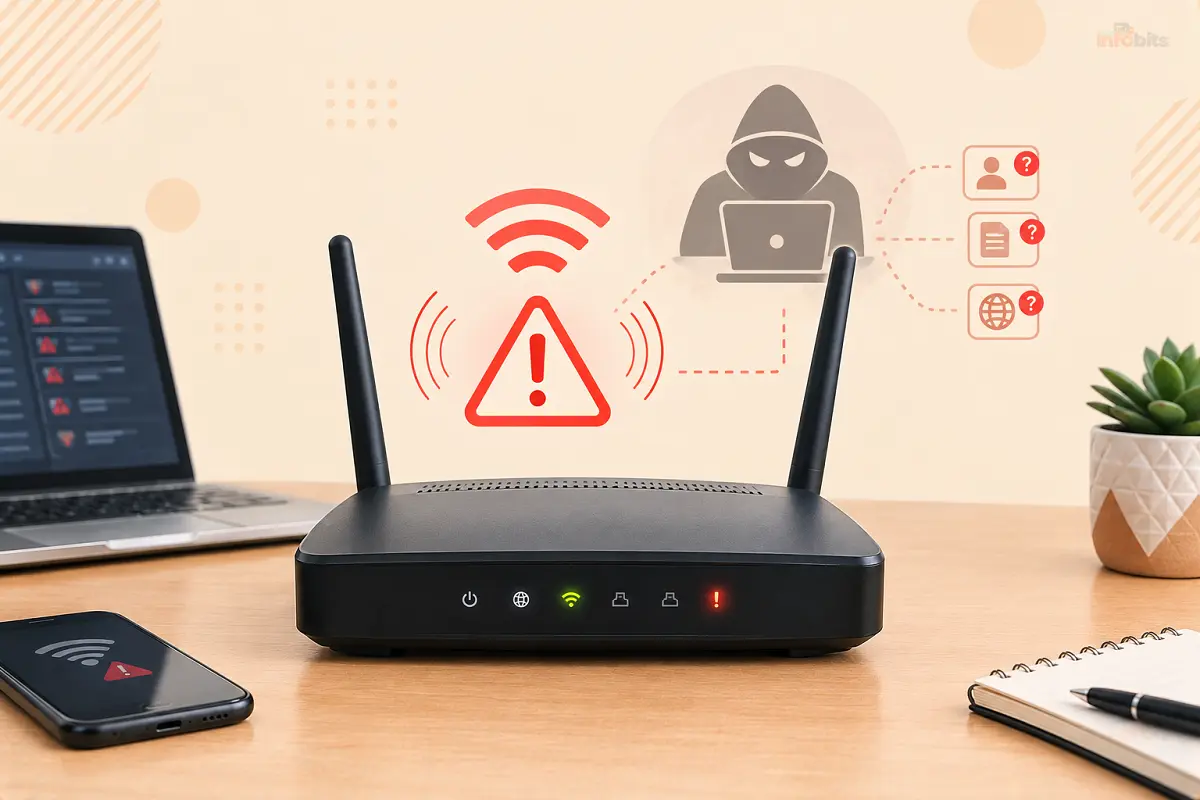
How to Tell If Your Router Has Been Hacked (12 Warning Signs)
Your router sits between every device you own and the internet, and almost nobody checks on it. It has no antivirus, no pop-up alerts, and no obvious “you’ve been infected” screen. Many hacked routers keep working normally, which is exactly what attackers want.
The good news is that you can check yours in about ten minutes, with no special tools. This guide covers the warning signs that matter, the ones that look scary but usually aren’t, a step-by-step audit of your router’s settings, and what to do if you find something.
Quick Answer:
The most reliable signs are changed DNS settings you didn’t make, being locked out of your admin page, remote access or port forwarding rules you don’t recognize, and unexpected redirects or certificate warnings on multiple devices. Slow internet or unknown devices alone are weaker clues, because they have many harmless causes.
The fastest check: log in to your router’s admin page and look at three things: the DNS servers, the remote management setting, and the port forwarding list. If any of them show something you didn’t set up, treat the router as compromised.
Why Routers Get Hacked
Attackers rarely target you personally. They scan the internet for routers with known weaknesses and take over whatever they find. The usual entry points:
- Out-of-date firmware. Routers that no longer receive updates stay vulnerable forever. The FBI has warned that attackers exploit end-of-life routers, often through exposed remote management, to install malware and build botnets or sell proxy access.
- Weak or default admin passwords. Factory logins are widely published.
- Remote administration left on. This lets anyone on the internet reach your login page.
- Risky features such as UPnP and WPS, which can open doors without you noticing.
- Compromised devices on your network that attack the router from the inside.
This isn’t a rare problem. In March 2026, the FBI named 18 router models from D-Link, Netgear, TP-Link, and Zyxel that had been compromised by AVrecon malware and turned into criminal proxy servers.
The notice said roughly 1,200 device models were targeted, and that access to about 369,000 devices has been sold since 2020.
The reason most people never notice: most consumer antivirus tools don’t scan routers, and this kind of malware is designed to run quietly in the background. That’s why it pays to know what to look for yourself. For a deeper look at antivirus limits, see router security vs antivirus.
12 Warning Signs Your Router May Be Hacked
I’ve split these into two groups. Strong signs are hard to explain innocently. Weak signs are worth investigating, but they often have ordinary causes.
Strong Signs
1. Your DNS settings have changed
DNS is the “phone book” your router uses to turn website names into addresses. Attackers change it to send you to fake sites. If the DNS servers in your router (or on your devices) are addresses you don’t recognize, that’s one of the clearest signs of hijacking. See the audit below for how to check.
2. You can’t log in to your admin page
If your usual password suddenly fails and nobody in your home changed it, someone else may have changed it. Don’t assume you typed it wrong. Try once more carefully, then consider a reset.
3. Remote access, port forwarding, or VPN settings you didn’t create
Look for “remote management,” “web access from WAN,” unfamiliar port forwarding rules, a DMZ host you didn’t set, a VPN server you didn’t enable, or admin accounts you didn’t add. These give attackers a way back in.
4. Redirects and certificate warnings on multiple devices
If several devices get sent to strange sites, or browsers warn about invalid security certificates on sites that normally work, your DNS may be hijacked. One device doing this is more likely malware on that device.
5. Settings that keep reverting
Firewall switched off, UPnP back on, or a changed network name that returns after you fix it. Some attackers install code that undoes your changes.
6. Notices from your ISP, or a ransom or threat message
Your internet provider may contact you if traffic from your connection looks malicious (spam, attacks, botnet activity). Take that seriously. Threatening messages claiming your data is stolen are more often scams, but they’re worth documenting.
Weaker Signs (Investigate, Don’t Panic)
7. Unknown devices on your network
This is the most commonly cited sign, but it’s often a false alarm. Phones can use randomized MAC addresses, and smart TVs, printers, and guest devices show up under odd names. Match each entry to a real device before you worry. See the article on how to block devices from your WiFi router if you need to remove one.
8. Sudden slowdowns
Slow internet usually means congestion, Wi-Fi interference, or an ISP issue. It’s only suspicious when it affects every device, persists after a reboot, and comes with another sign on this list.
9. Router is hot, busy, or lit up when nothing is using it
Constant activity lights or high CPU use while your devices are idle can mean the router is doing work you didn’t ask for. It can also mean a backup, a cloud camera, or an update.
10. Unexpected reboots or connection drops
Instability is a common failure for aging hardware. It becomes more concerning if it started after a login you didn’t make. If your modem keeps restarting, check if the modem keeps resetting first.
11. A cloned or changed Wi-Fi name
A near-identical copy of your network name can be an “evil twin” meant to trick devices into connecting. It can also be a neighbor’s similarly named network.
12. Higher upload data than usual
A spike in outgoing traffic while the house is idle can suggest the router is acting as a proxy or part of a botnet. Check your router’s traffic stats or your ISP’s usage page. To understand this scenario, read Is your router part of a botnet?
Is It a Hack or Something Else?
| What you notice | Likely harmless cause | When to worry |
|---|---|---|
| Slow internet | ISP outage, Wi-Fi interference, congestion | All devices slow, persists after reboot, plus another sign |
| Unknown device | Phone with private MAC, smart TV, IoT gadget | Device name/MAC doesn’t match anything you own, even after checking |
| Redirects | Browser extension, adware on one PC | Happens on multiple devices and browsers |
| Router reboots | Overheating, aging hardware, power issue | Started after unrecognized login or setting change |
| Can’t log in | Forgot changed password, Caps Lock | Correct password fails, reset was never done |
| New Wi-Fi network | Neighbor or extender | Same name as yours, appears and disappears |
The 10-Minute Router Audit
You’ll need a computer or phone connected to your home network. If you can, use a wired connection. Have the router’s label handy (it lists the model and sometimes the default login).
Step 1: Find Out How Widespread the Problem Is
Try the same website on a phone using mobile data and on a device using your home Wi-Fi. If the problem only happens on your Wi-Fi, suspect the router or network. If it happens on one device only, suspect that device. A simple router reboot is a harmless first test, but it isn’t a cure for a compromise.
Step 2: Log In to the Router
Find your router’s address. On Windows, open Command Prompt and run ipconfig, then look for Default Gateway. Common addresses are 192.168.1.1, 192.168.0.1 and 10.0.0.1. Enter that in a browser.
If your admin login doesn’t work, skip ahead to “What to Do If Your Router Is Hacked.”
If your router belongs to your ISP: you may have limited access. Check what you can see, then call your provider and ask them to check the device and push a fresh firmware or replacement.
Step 3: Check the DNS Settings
Look in your router’s Internet/WAN settings for DNS server addresses. Then compare:
| What you see | What it likely means |
|---|---|
| Blank or “automatic” (obtained from ISP) | Usually normal |
| Your router’s own address (like 192.168.1.1) | Usually normal, since the router forwards requests |
| A well-known public resolver you chose (e.g., Cloudflare, Google, Quad9) | Normal if you set it |
| An address you don’t recognize | Red flag. Look it up before assuming. |
You can also check from a Windows PC by running. ipconfig /all and reading the DNS Servers line. Pick a trusted resolver and set it manually if you want to be sure. Our guide to the best DNS servers for blocking malware and ads explains good options.
Step 4: Turn Off Remote Management
Find settings named Remote Management, Remote Administration, Web Access from WAN, Cloud Access, or similar. Unless you use it on purpose, switch it off. The FBI specifically recommends disabling remote administration and rebooting the router to reduce the risk of infection on end-of-life models.
Step 5: Review Port Forwarding, UPnP, DMZ, VPN and DDNS
Open each of these sections and ask: “Did I set this up?”
- Port forwarding / virtual servers: Delete any rule you can’t explain.
- DMZ: Should normally be empty.
- UPnP: Convenient but risky. Consider turning it off if you don’t need it for gaming or a specific device.
- VPN server / DDNS: Only enabled if you deliberately use them.
- Scheduled tasks or scripts: Rare in consumer routers, but suspicious if present.
Step 6: Check Accounts and Wi-Fi Settings
- Look for extra admin users you didn’t create.
- Confirm your Wi-Fi uses WPA3 or WPA2-AES (never WEP or open).
- Turn off WPS, which has well-known weaknesses.
- Review guest network settings. If you use one, make sure it’s isolated. See how to create a secure guest network.
Step 7: Review the Connected Devices List
Compare each entry against devices you own. Identify unknowns by their MAC address (the first six characters hint at the manufacturer).
Phones and laptops may appear under randomized addresses, so a manual walk-through of your household devices helps. A network scanner app such as Fing can add detail.
Step 8: Check Firmware and Support Status
Find your firmware version on the router’s status or administration page. Then:
- Look up your exact model (label on the bottom) on the manufacturer’s support page.
- Check whether a newer firmware exists, and install it from the router’s own updater or the official download.
- Check whether the model is end of life. If the manufacturer has stopped issuing updates, the router is a standing risk even if it isn’t hacked today.
- Compare your model to the FBI’s lists. The March 2026 notice named 18 models from D-Link, Netgear, TP-Link, and Zyxel. You can read the full notice at ic3.gov (search “AVrecon FLASH 12 March 2026”).
For a proper update process, see the router firmware update checklist.
Step 9: Read the System Log
Most routers keep a log. Look for:
- Logins from unfamiliar or external IP addresses
- Many failed login attempts
- Configuration changes at times you weren’t home
- Unexpected restarts
Save a screenshot before you change anything. It’s useful if you report the incident.
Step 10: Test From the Outside
Your router can look clean on the inside and still expose something to the internet. You can check from outside using your public IP address and a reputable port scanner such as GRC’s ShieldsUP.
Only scan your own connection. Any open ports you don’t recognize (especially for administration, Telnet, or SSH) are a reason to dig in.
What Your Results Mean
| What you found | Likely verdict |
|---|---|
| Unknown DNS servers, or changed settings you didn’t make | Compromised. Reset and rebuild. |
| Remote management is on, and you never enabled it | Probably compromised, or you enabled it in the past and forgot. |
| Port forwards/admin accounts you don’t recognize | Compromised |
| Everything looks normal, but the model is end-of-life | Not hacked yet, but high risk. Plan a replacement. |
| Only an unknown device; everything else clean | Likely harmless, but identify the device |
| Only slow speeds; everything else clean | Likely not a hack. Troubleshoot Wi-Fi and ISP. |
What to Do If Your Router Is Hacked
Work through these in order.
- Disconnect the router from the internet. Unplug the cable from your modem or WAN port. You can leave local devices connected if you need to take screenshots.
- Document what you found. Screenshot suspicious DNS, remote access, port forwards, and logs.
- Do a factory reset. Hold the reset button (usually 10 to 30 seconds; check your manual) until the router restarts.
- Don’t restore your old configuration backup. It may contain the attacker’s settings.
- Update the firmware before reconnecting normally. Download the latest version from the manufacturer on a clean device and flash it. A basic Cat6 Ethernet cable like Amazon Basics RJ45 Network Cable lets you connect directly to the router during setup, avoiding Wi-Fi while you reconfigure it.
- Set up from scratch with strong, unique credentials: a new admin username if possible, a long admin password, and a new Wi-Fi password. A password manager makes this practical. See our listicle on best password managers. Use a password manager to generate and store the admin and Wi-Fi passwords. Your most-recommended pick from the best-password-managers article fits naturally here.
- Turn off remote management, WPS, and (if unneeded) UPnP. Turn on auto-updates if your router supports them.
- Change important account passwords from a device you trust. Prioritize email, banking, and anything that holds saved logins. Turn on two-factor authentication. A hardware security key adds strong protection to your most important accounts. See our YubiKey 5C NFC review.
- Scan your computers and phones for malware. A compromised router can push you toward malicious downloads. Run a reputable on-demand scanner such as Malwarebytes (available on Amazon) on each computer. We feel that our Malwarebytes vs Kaspersky comparison may be beneficial for you.
- Tell your ISP and report it. In the US, you can file a report with the FBI’s Internet Crime Complaint Center at ic3.gov. Elsewhere, check your national cybersecurity agency or CERT.
Is a Factory Reset Enough?
Often, but not always. A reset clears settings, so it fixes DNS hijacks and rogue rules. But it doesn’t always remove malware that has modified the router’s firmware.
The FBI’s 2026 notice explains that AVrecon persistence varies by device type, and describes some device types as essentially permanently infected because the malware replaces the firmware. In that situation, resetting won’t remove it.
That’s why the safest rule is:
- Supported router, simple settings tampering: reset, update firmware, reconfigure.
- End-of-life router, a model on a government warning list, or symptoms that return after a clean reset: replace it.
Time to Replace It? Here’s How to Decide
Replace the router if:
- The manufacturer no longer releases security updates
- It appears on an FBI or CISA warning list
- Reset and reflash don’t stop the symptoms
- It’s more than about five to seven years old and has never been updated (see how long routers last)
When you buy a replacement, look for automatic updates, a clear support commitment, and built-in protection. Our best routers with built-in malware protection roundup compares options. If you want to keep an old router in service, see uses for old routers. Just don’t connect a compromised one to your main network.
Common Myths
Myth: My antivirus would warn me if my router was hacked.
Fact: Antivirus runs on your computer, not your router, so it usually can’t see a compromised router.
Myth: Changing the Wi-Fi password fixes a hacked router.
Fact: That blocks uninvited Wi-Fi users, but doesn’t remove changed DNS settings, remote access, or malware.
Myth: Rebooting cleans it.
Fact: A reboot may clear some temporary malware, but doesn’t fix changed settings, and isn’t a reliable cure.
Myth: Hiding my network name or filtering MAC addresses secures me.
Fact: Neither stops a determined attacker. Strong encryption and updated firmware matter far more.
Myth: Only big targets get hacked.
Fact: Attackers scan automatically and take whatever is vulnerable. Home routers are valuable as proxies and botnet nodes.
How to Keep Your Router From Being Hacked
- Install firmware updates promptly, and enable auto-update if available.
- Replace routers that have reached end of life.
- Use a long, unique admin password, and change the default username if the router allows it.
- Disable remote management, WPS, and any feature you don’t use.
- Use WPA3 (or WPA2-AES) with a strong Wi-Fi password.
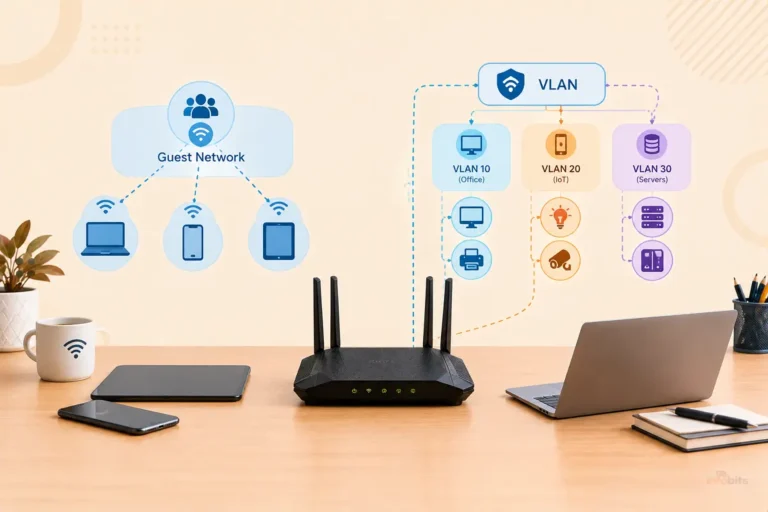
- Put smart-home gadgets on a separate network. See our detailed articles on these matters, like secure IoT devices on home WiFi, VLAN for IoT devices, and guest network vs VLAN.
- Use a malware-blocking DNS service, or a router with built-in protection. See the ASUS AiProtection setup guide and AiProtection vs Armor vs HomeShield.
- Review your router’s settings and connected-device list every few months.
For a full walkthrough of a safe setup, read Setting Up a router.
Final Thoughts
A hacked router rarely announces itself. The strongest evidence isn’t a slow connection or a mystery gadget on your device list.
It’s a setting you didn’t change, such as DNS servers, remote access, or port forwarding. Ten minutes in your admin page will tell you far more than any guesswork.
If you find something, reset, update, and rebuild from scratch, and replace the router if it’s old or the problem returns. If everything checks out, tighten the basics now (updates, strong admin password, remote management off), so you never have to run this audit in a hurry.
Frequently Asked Questions
How do I know if my router has been hacked?
Check for DNS servers you didn’t set, remote management you didn’t enable, unfamiliar port forwarding or admin accounts, and being locked out of the admin page. Redirects across several devices are another strong sign.
Can someone hack my router remotely?
Yes, especially if the firmware is out of date or remote management is enabled. Attackers scan the internet for vulnerable routers and exploit known flaws without targeting you personally.
What are the first signs of a hacked router?
Often the first signs are settings changes, an unexpected admin lockout, browser redirects, or certificate warnings. Slow internet can appear too, but it’s a weak sign on its own.
Can a hacked router steal my passwords?
It can redirect you to fake sites that harvest logins, and it may intercept unencrypted traffic. HTTPS protects most of your activity, which is why certificate warnings should never be ignored.
How do I check my router’s DNS settings?
Log in to the router’s admin page and open the Internet or WAN settings, or run ipconfig /all on Windows. DNS servers you don’t recognize are a red flag.
Does a factory reset remove a hacker from my router?
Usually it removes changed settings and rogue rules. It may not remove malware that has modified the firmware, so replace the router if symptoms return or if it is end of life.
How do I know if an unknown device on my network is a hacker?
Check its name and MAC address against your own devices first. Phones with private addresses and smart gadgets often look unfamiliar. If it’s still unidentified, block it, change your Wi-Fi password, and review the router’s settings.
Can antivirus detect a hacked router?
Normally not. Antivirus protects the device it’s installed on, not the router, so you need to inspect the router’s settings and firmware yourself.
Should I replace my router if it was hacked?
Replace it if it’s end of life, if it’s on a government warning list, or if the problem returns after a clean reset and firmware update. Otherwise, a reset, update, and reconfigure may be enough.
Is my ISP-provided router safe?
It can be, since providers often push updates automatically. But you may have limited control, so ask your ISP to check or replace the device if you suspect a problem.
How often should I update my router firmware?
Check every few months, or turn on automatic updates if available. Apply security patches as soon as they’re released.
Should I turn off remote management?
Yes, unless you specifically need it. It exposes your admin page to the internet, which is a common route for attacks.
Can my neighbor hack my Wi-Fi?
They can try, especially if you use a weak password or WEP, or leave WPS on. A strong WPA3 or WPA2-AES password and WPS turned off cover most of that risk.
What should I do if I can’t log in to my router?
Try your password carefully, then check the label for defaults. If it still fails, perform a factory reset and set it up again with new credentials, since it may have been changed by someone else.
Where do I report a hacked router?
Tell your ISP first. In the US, you can file a report at ic3.gov. In other countries, contact your national cybersecurity agency or CERT.
Found this guide useful? Share it with someone interested in tech-related tips, tricks, solutions, and news. Follow us on Facebook and Twitter for more tips, tricks, and guides.
We also ask that you bookmark this page for future reference, as we are constantly updating our articles with new information.
Sign up for our free newsletter as well to receive fresh information immediately in your inbox and keep technically up to date.
Disclosure: If you follow our links to a retailer’s website and make a purchase, we will get an affiliate commission on some, but not all, of the items or services we promote. This will cause no price change for you.
You May Be Interested in Reading:
- Router Security Features That Matter in 2026: A Complete Guide
- DNS Server Not Responding: How to Fix It on Windows, Mac, and Router
- TP-Link HomeShield Basic vs Pro vs Total Security: Is the Upgrade Worth It?
- Wi-Fi 7 Router Won’t Connect to Older Devices: 9 Fixes That Work
- Using a Second Router as a Guest Network: Complete Setup Guide

)